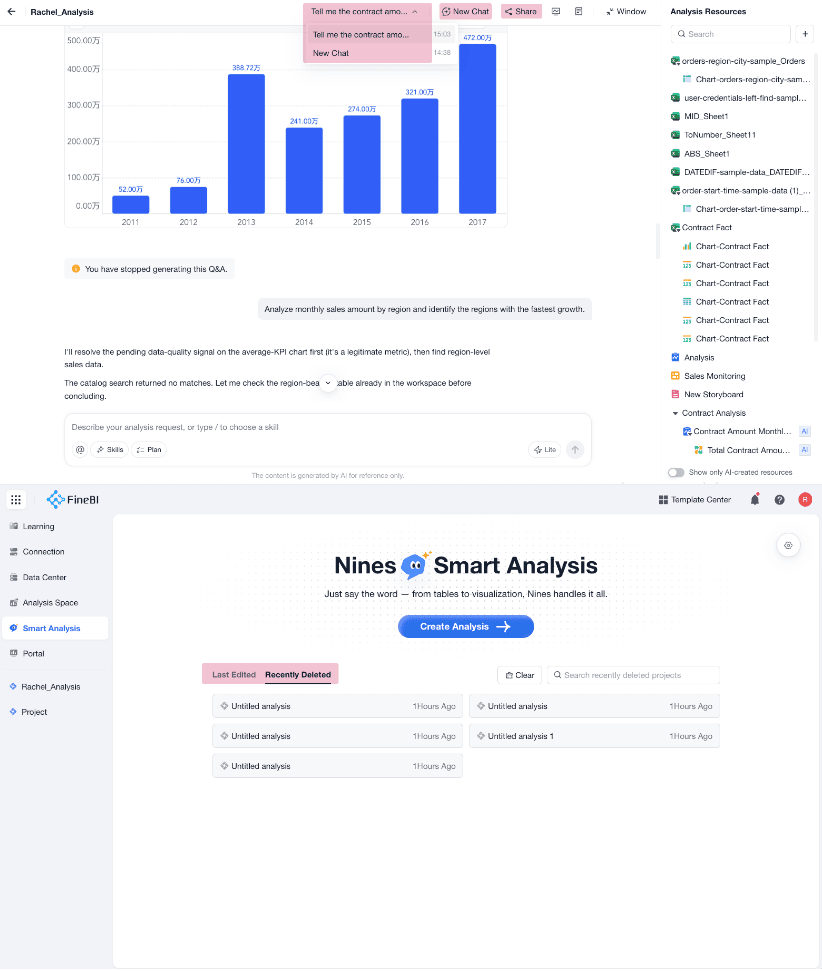
Nines is the AI analyst in FineBI Cloud. You can ask questions in plain language, let Nines work with your analysis resources, and turn the results into charts, dashboards, storyboards, or reusable skills.
What You Can Do With Nines
| Need | What Nines Can Help You Get |
|---|---|
| Explore a table quickly | Analysis steps, calculated metrics, charts, and key findings based on the selected table |
| Investigate a business question | Follow-up analysis based on previous results, so you can keep drilling down without starting over |
| Build BI content | Charts, dashboards, and storyboards that can be reviewed, saved, and shared |
| Improve existing content | Adjusted chart styles, optimized dashboard content, or new analysis based on resources in the current project |
| Reuse an analysis method | Save a stable analysis workflow as a personal skill and use it again in similar tasks |
Open Nines
You can open Nines from the main navigation or from a project.
| Entry | Use It When | What It Uses |
|---|---|---|
| Nines in the left navigation | You want to start a new AI analysis from data. | Tables that you add to the current Nines conversation |
| Nines inside a project | You are already editing a project and want AI assistance. | Data, charts, dashboards, and other resources in the current project |
Start an Analysis from the Navigation
Use the navigation entry when you want Nines to begin with a selected data table and guide the analysis step by step.
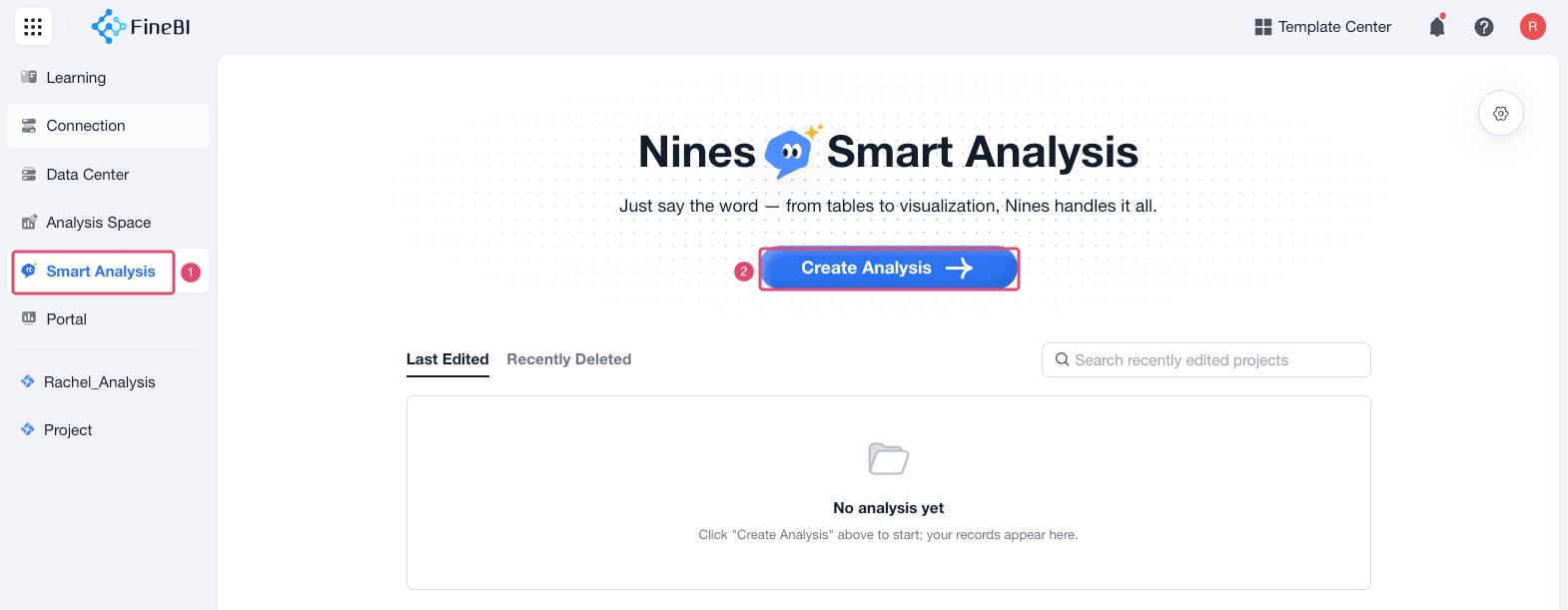
Click Smart Analysis in the left navigation and click Create Analysis.
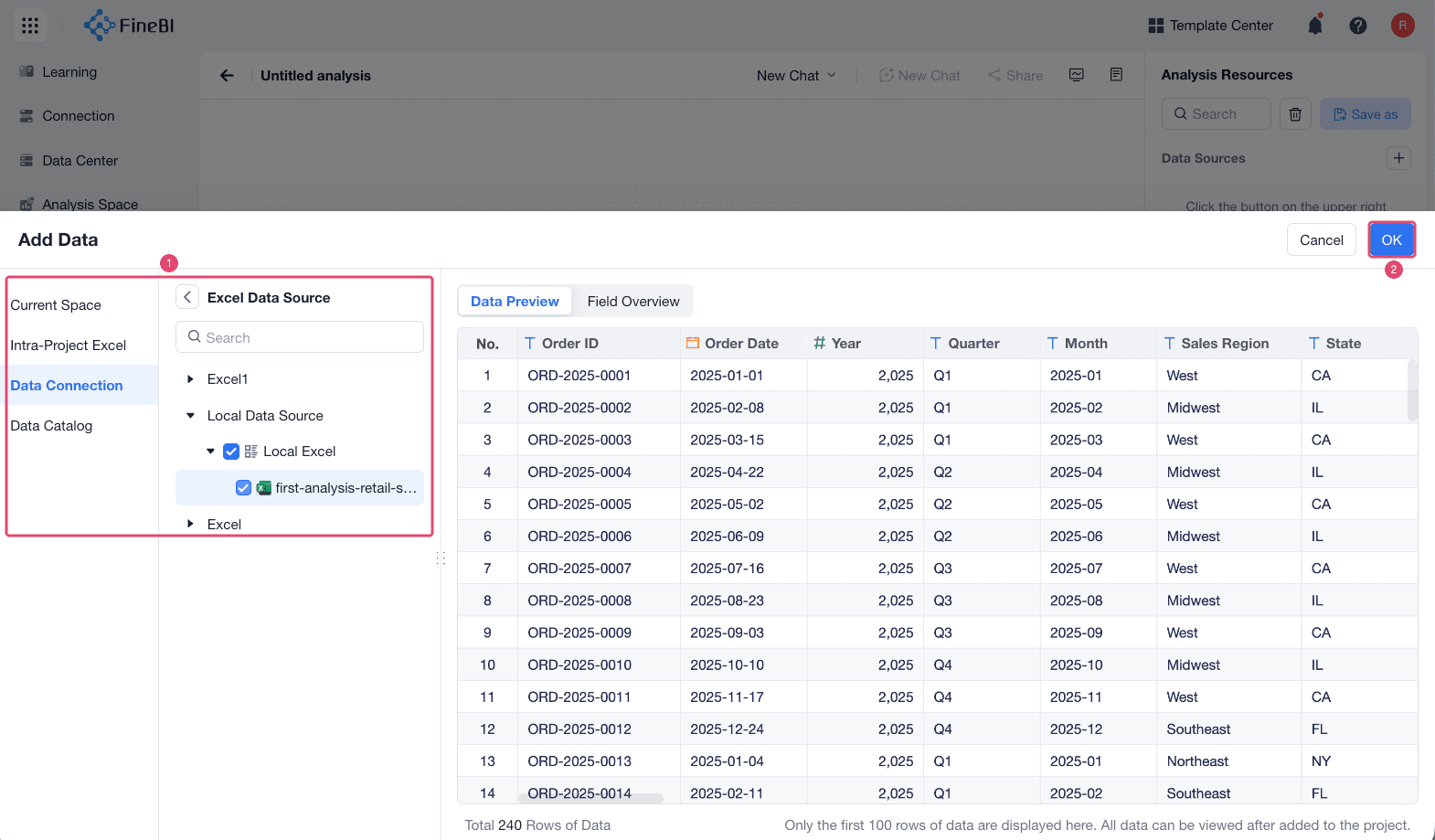
Add the data source in the popup dialog.
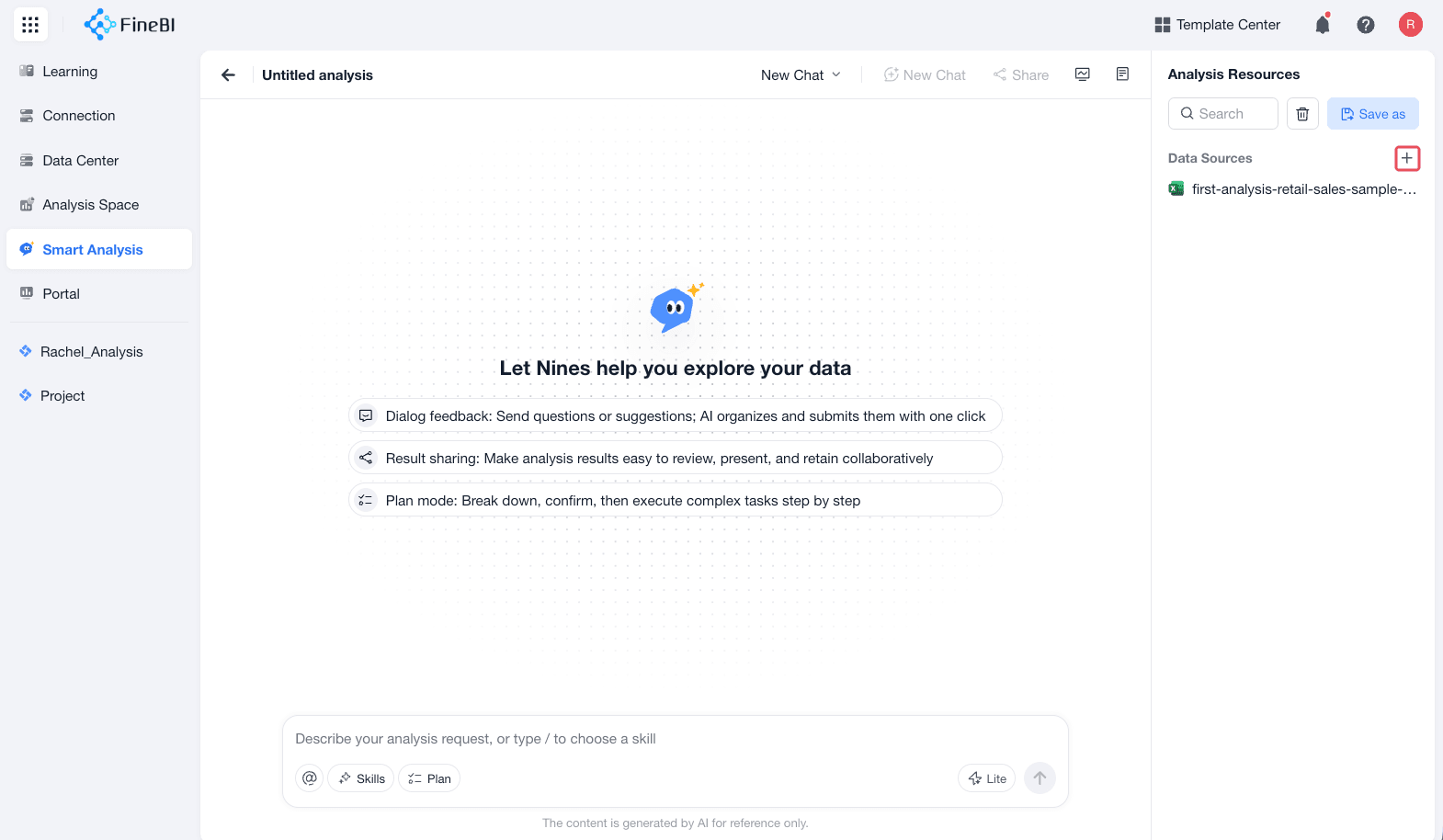
You can also add analysis resources in one of the following ways later:
- Click + under Analysis Resources > Data Sources, and then choose the table that you want to analyze.
- Ask Nines to add a table in the conversation. For example, enter
Add the customer visit table. Nines searches for matching tables in Data Catalog and shows the results. Select the table, and then click Add Data.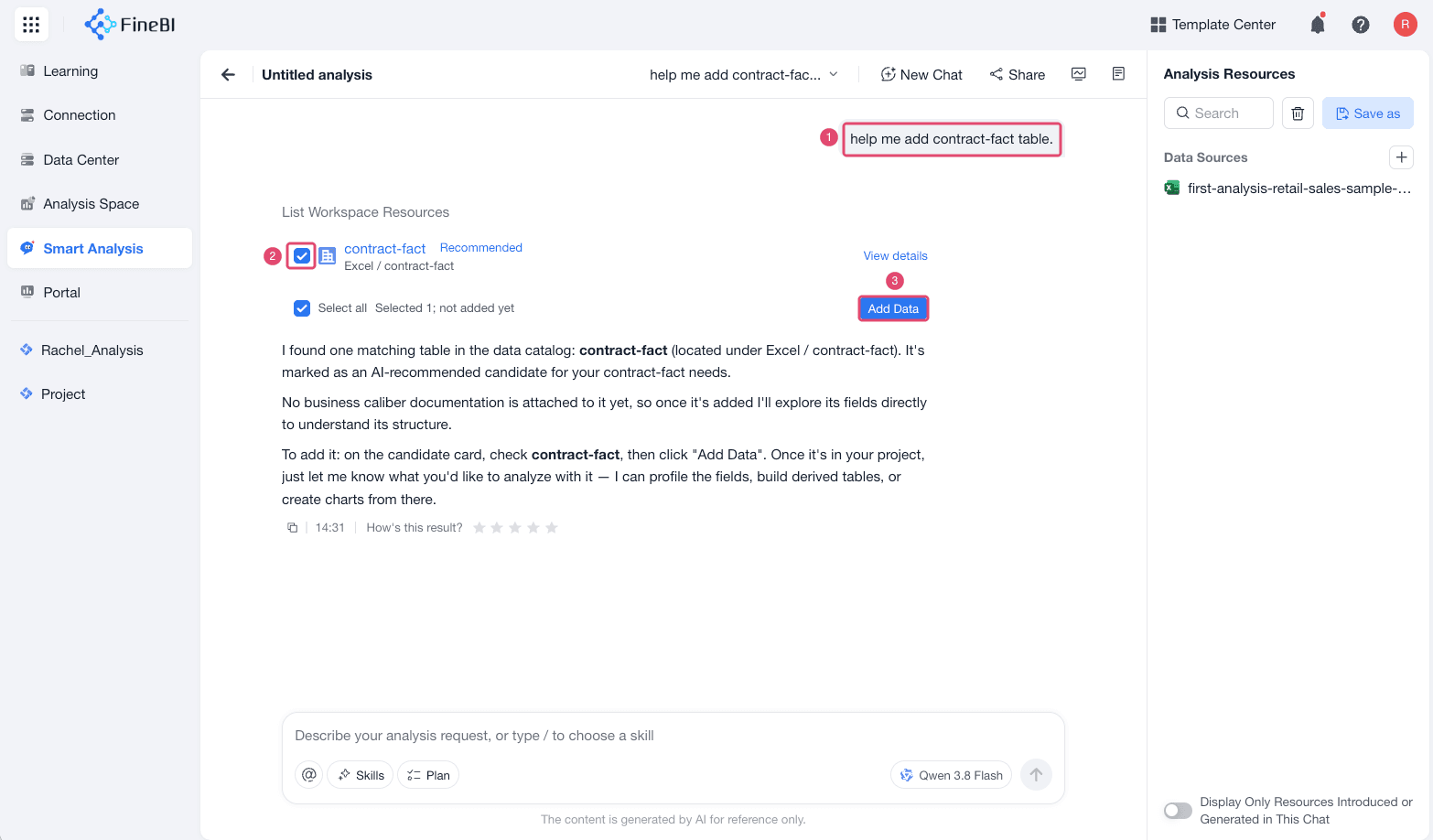
Enter the analysis question in the input box. Nines can create analysis steps, calculate metrics, generate charts, summarize findings, and suggest follow-up questions.
Use Nines in a Project
Use the project entry when you want Nines to work with the current project content.
Open the project that contains the data or BI content you want to analyze and Click Smart Analysis in the project editor.
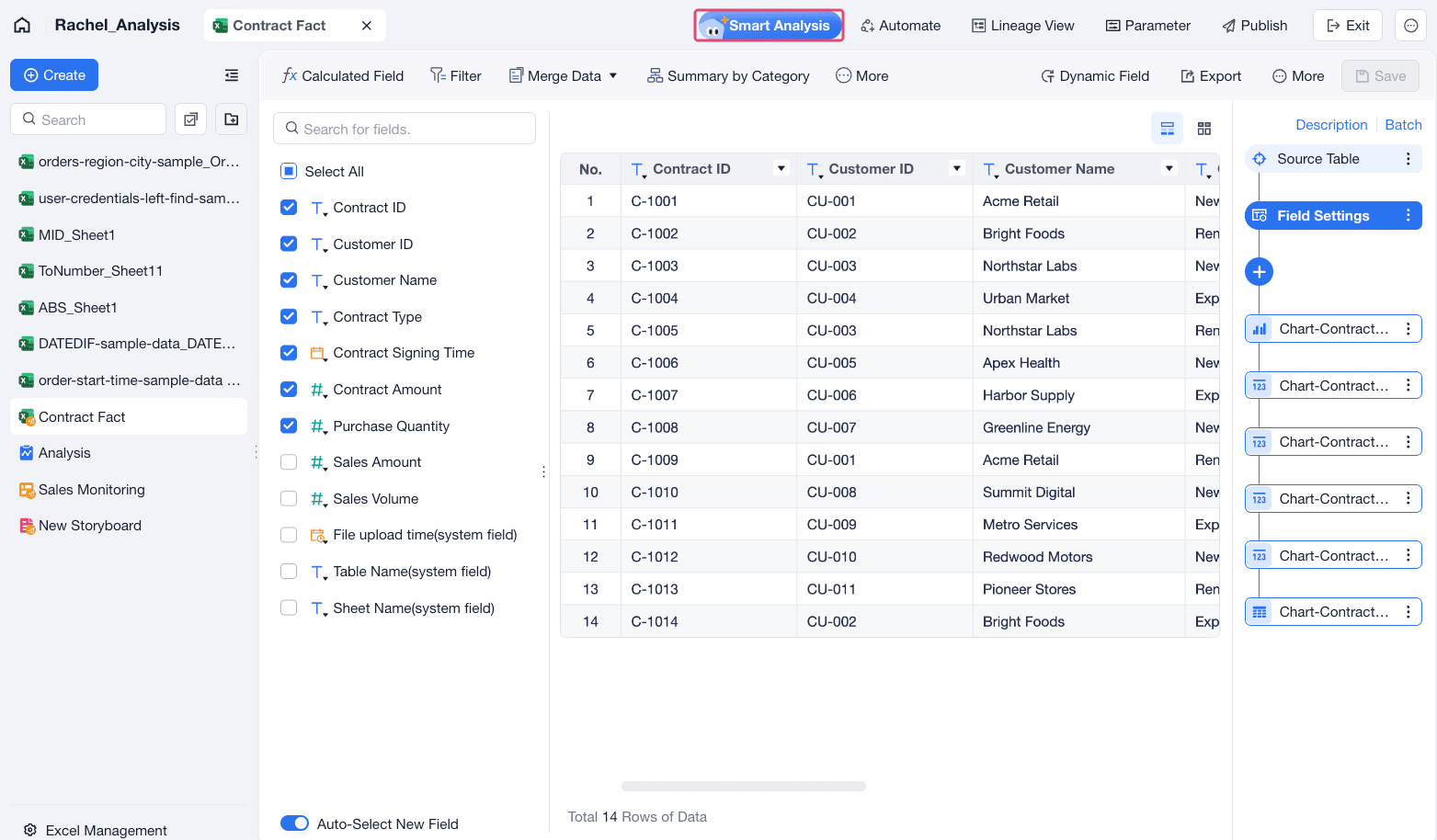
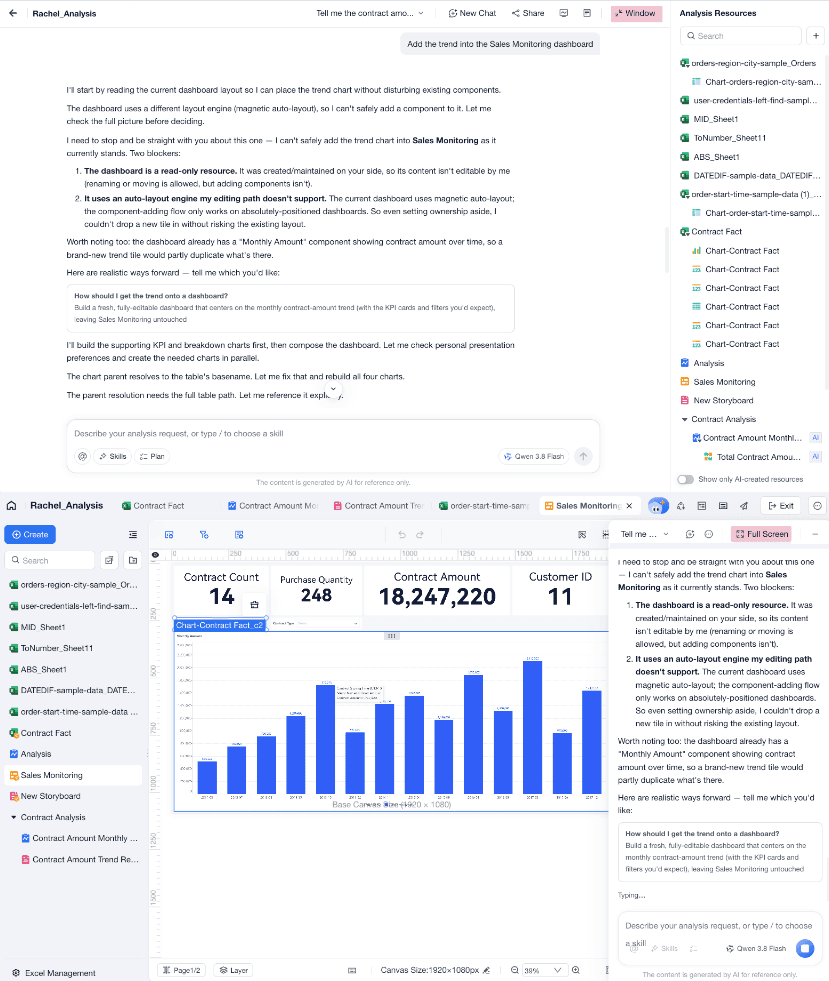
Use full-screen mode for focused analysis, or use window mode when you want to keep editing the project while chatting with Nines.
Choose a Model
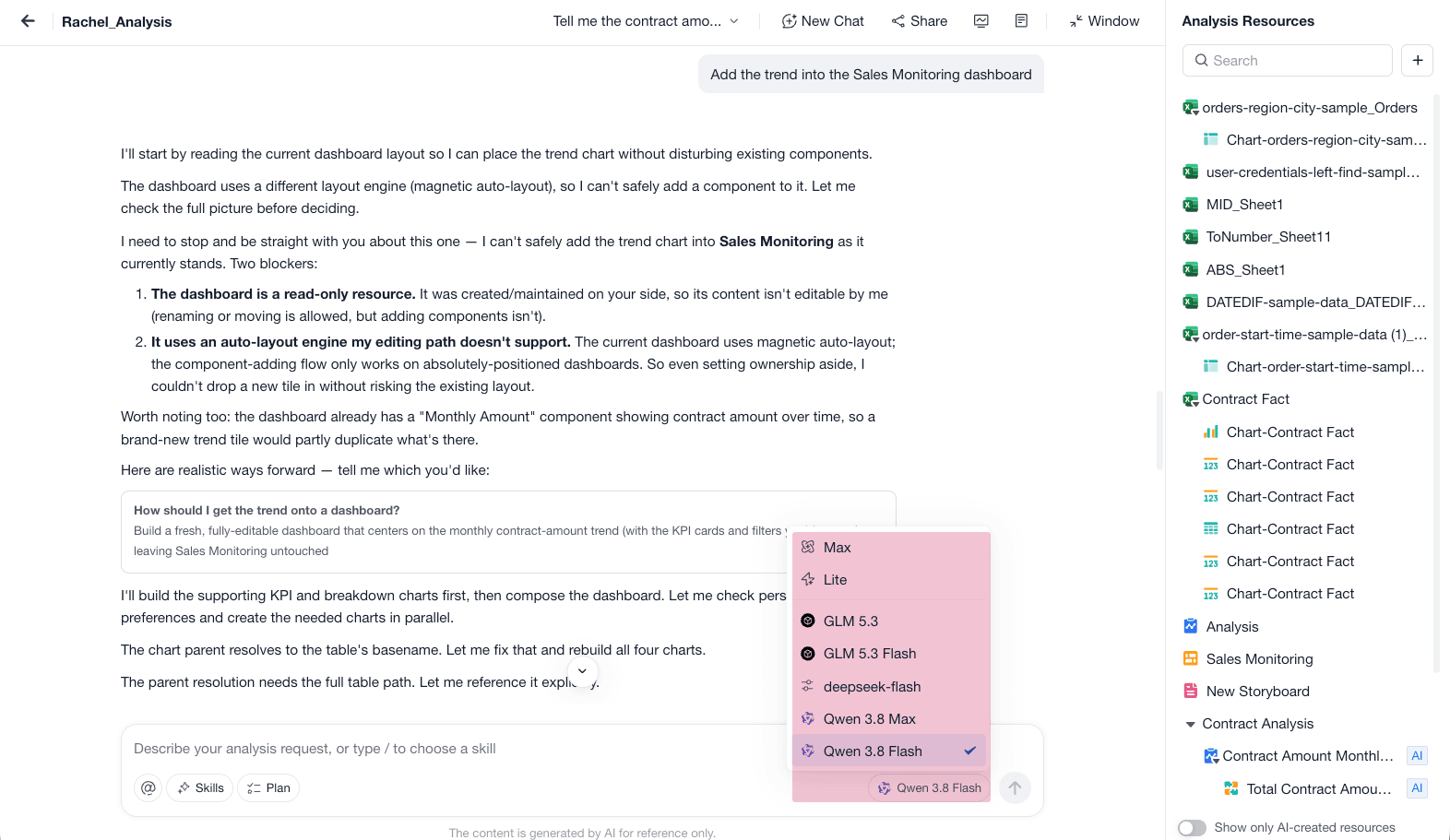
Select the model that matches the complexity of the task.
| Model | Best For |
|---|---|
| Lite | Most day-to-day analysis tasks Use it when you want a faster, cost-effective option for charts, dashboards, and common analysis questions. |
| Max | Complex analysis, long-context tasks, and multi-turn investigations that require more reasoning |
Choose an Analysis Mode
Nines supports two ways to work through an analysis.
| Mode | How It Works | Use It When |
|---|---|---|
| Conversation Mode | Nines responds directly to your question and continues from the conversation context. | You want to explore freely, ask follow-up questions, or refine a result step by step. |
| Plan Mode | Nines clarifies the goal, confirms the analysis logic, and then executes the plan. | You already have a business question or analysis framework and want more control over the method. |

Work with Analysis Resources
Analysis resources are the tables and results that Nines can use in the current conversation.
| Action | What It Does |
|---|---|
| Add a resource | Adds an analysis table for Nines to use. |
| Reference a resource | Lets you mention a table or result in the input box when asking a question. |
| View table context | Shows the table role, business definition, and field descriptions, so you can confirm whether the resource is the right one. |
| Show only AI-created resources | Filters the resource list to the resources created by Nines. |
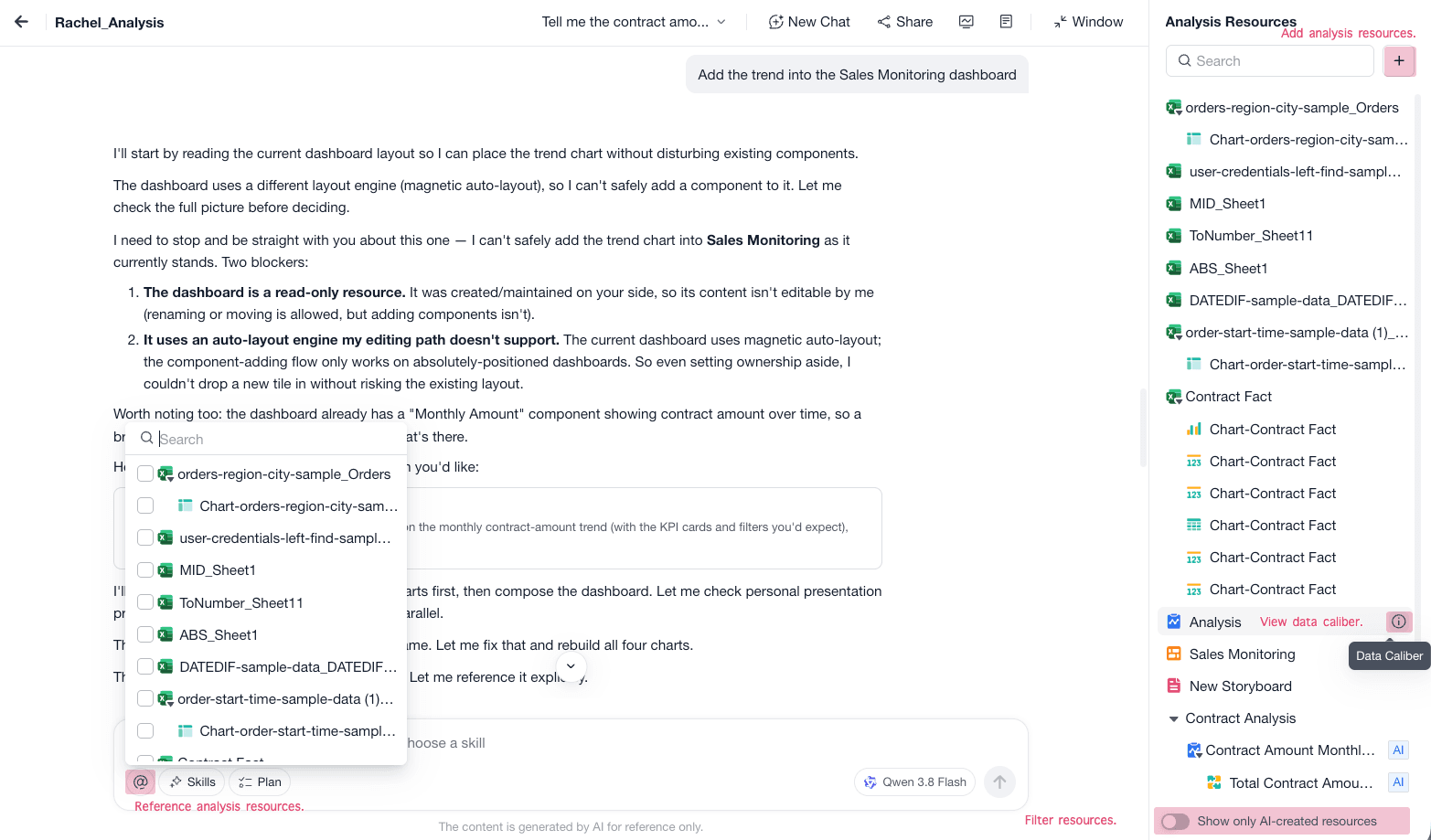
Use The Input Box
The input box is where you tell Nines what to do. You can ask a question, reference an analysis resource, call a skill, switch to Plan Mode, or choose the model for the conversation.
Examples:
Analyze monthly sales amount by region and identify the regions with the fastest growth.Create a chart that compares gross profit by product category.Find why profit margin decreased in Q2.Create a storyboard that explains the analysis result.
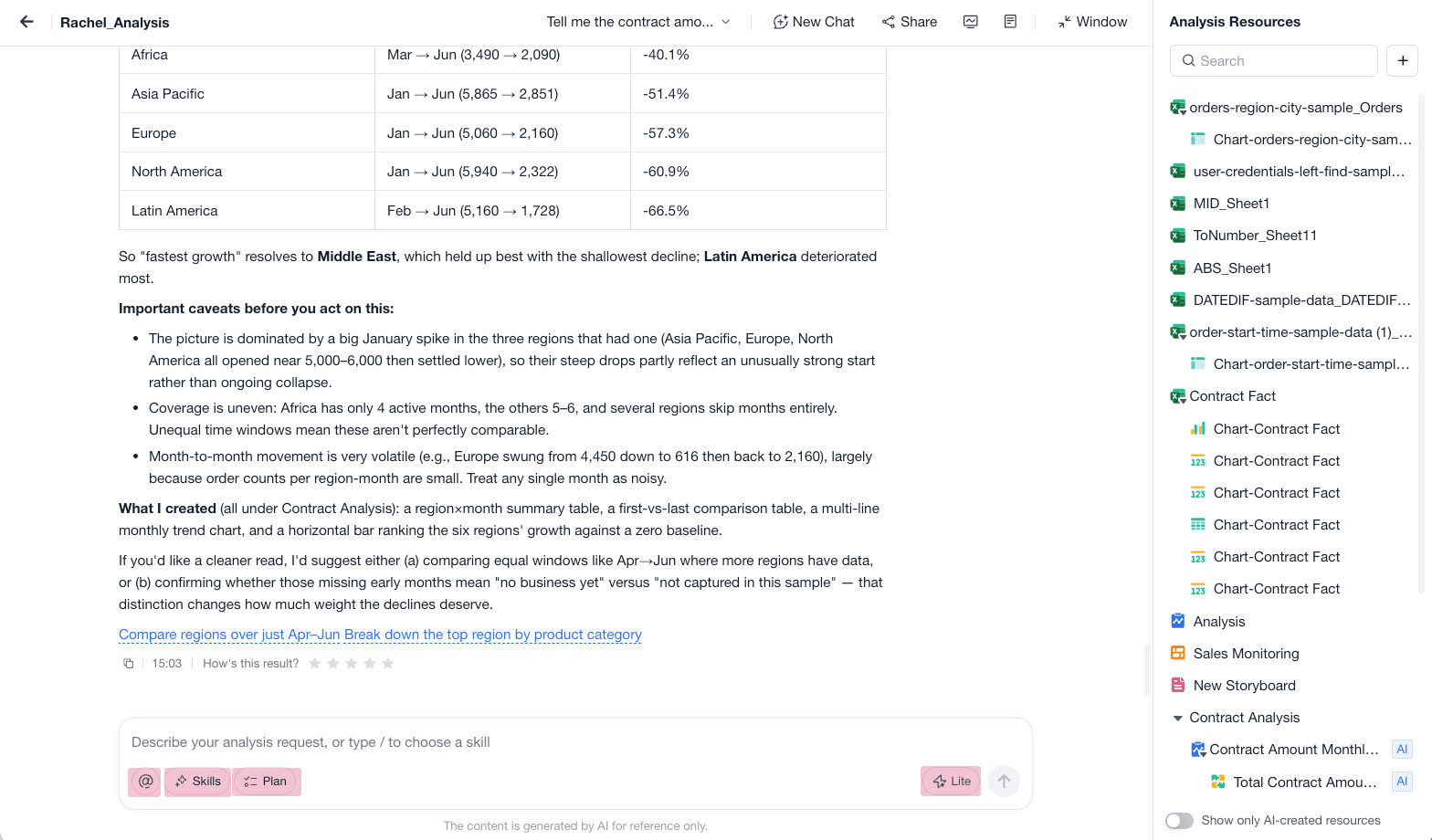
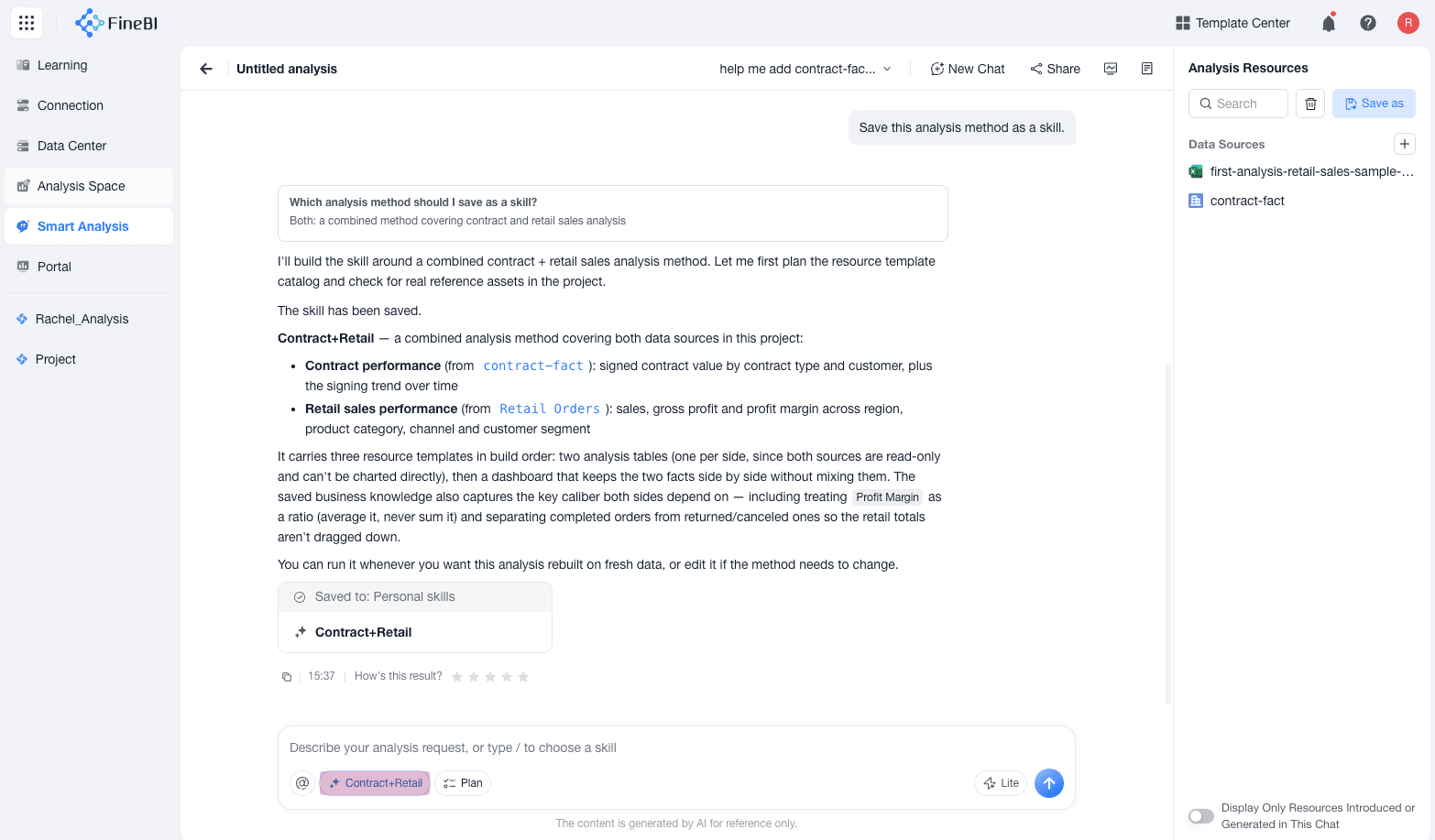
Reuse Analysis with Skills
Use skills when an analysis method is useful beyond one conversation. A skill can store a stable analysis approach, so you can apply the same logic to similar data or business questions later.
After Nines completes an analysis and the analysis path is worth reusing, ask Nines to save the method as a skill.
Example: Save this analysis method as a skill.
You can also create or import a skill manually from Skill Management.
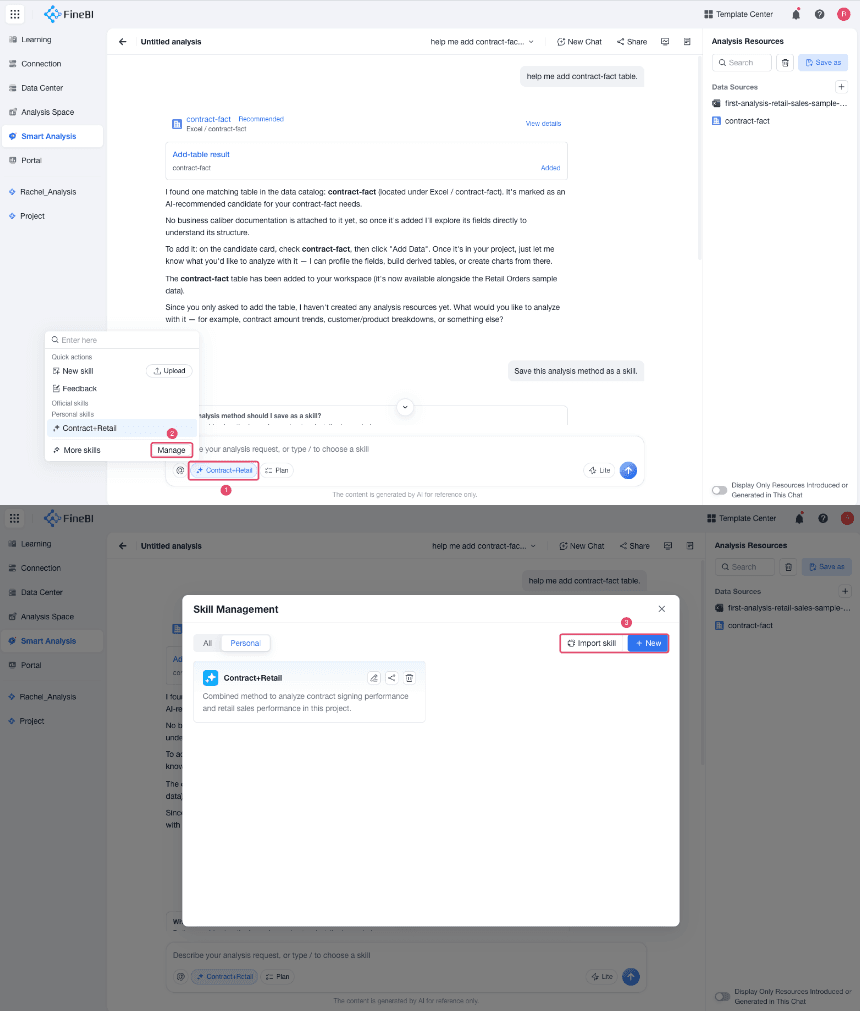
To use an existing skill, select Skill in the input box, choose the skill that matches your task, and then continue the conversation with the required data and question.
| What You Save | What You Get Later |
|---|---|
| Analysis logic | Reuse the same metric definitions, breakdown method, or investigation path. |
| Prompt structure | Start similar analysis tasks with less manual instruction. |
| Working method | Keep recurring analysis work more consistent across conversations. |
Turn Results into BI Content
After Nines completes an analysis, you can continue working with the generated result.
| Output | What You Can Do |
|---|---|
| Analysis table | Review the generated steps and data results. |
| Chart | Use the visual result directly, or refine it with follow-up prompts. |
| Dashboard | Turn analysis results into an interactive page for monitoring and presentation. |
| Storyboard | Create a report-style explanation with analysis logic, text, and visual results. |
| Skill | Save a stable analysis method and reuse it later. |
Share, Export, And Manage Conversations
Nines keeps your analysis work in conversations, so you can return to previous analysis paths.
You can:
- Create a new conversation.
- Switch to a previous conversation.
- Share a conversation.
- Export the analysis process to PDF.
- View recent Nines analyses and recently deleted analyses from the Nines entry.
- Delete analysis resources that are no longer needed.