


Overview
Data source permissions control who can manage a data connection, modify data within an assigned scope, or use permitted data in analysis. After you create a data connection in Connection, you automatically receive Management permission and can assign permissions to other members, spaces, or members who match a user property condition.
Each permission setting defines three things: who receives access, which data they can access, and what they can do with it.
| Setting | Description |
|---|---|
| Recipient scope | Specific members, spaces, or a set of members defined by user property conditions |
| Permission scope | The entire data connection or a specific group or table within the data connection |
| Permission level | Management, Modify, or Use. |
Permission Levels
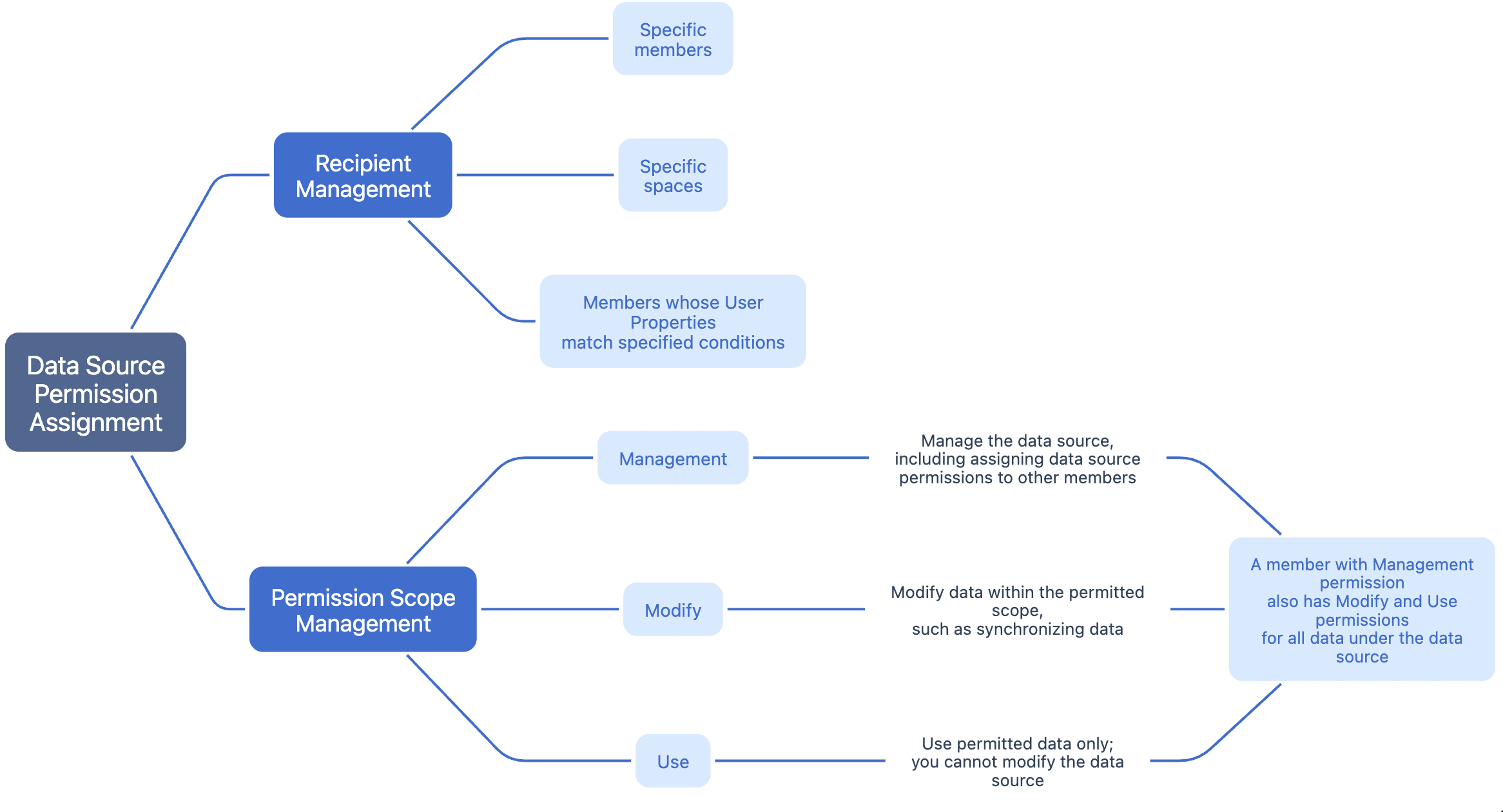
FineBI Cloud provides three data source permission levels.
| Permission Level | What It Allows |
|---|---|
| Management | Configure the data connection and assign data source permissions to other members. Management includes Modify and Use permissions for the data under the data connection. |
| Modify | Modify data within the assigned scope, such as appending data using Excel files or synchronizing tables. Members with Modify permission cannot assign data source permissions. |
| Use | Use the permitted data in the analysis. Members with Use permission cannot modify the data source or change its permission settings. |
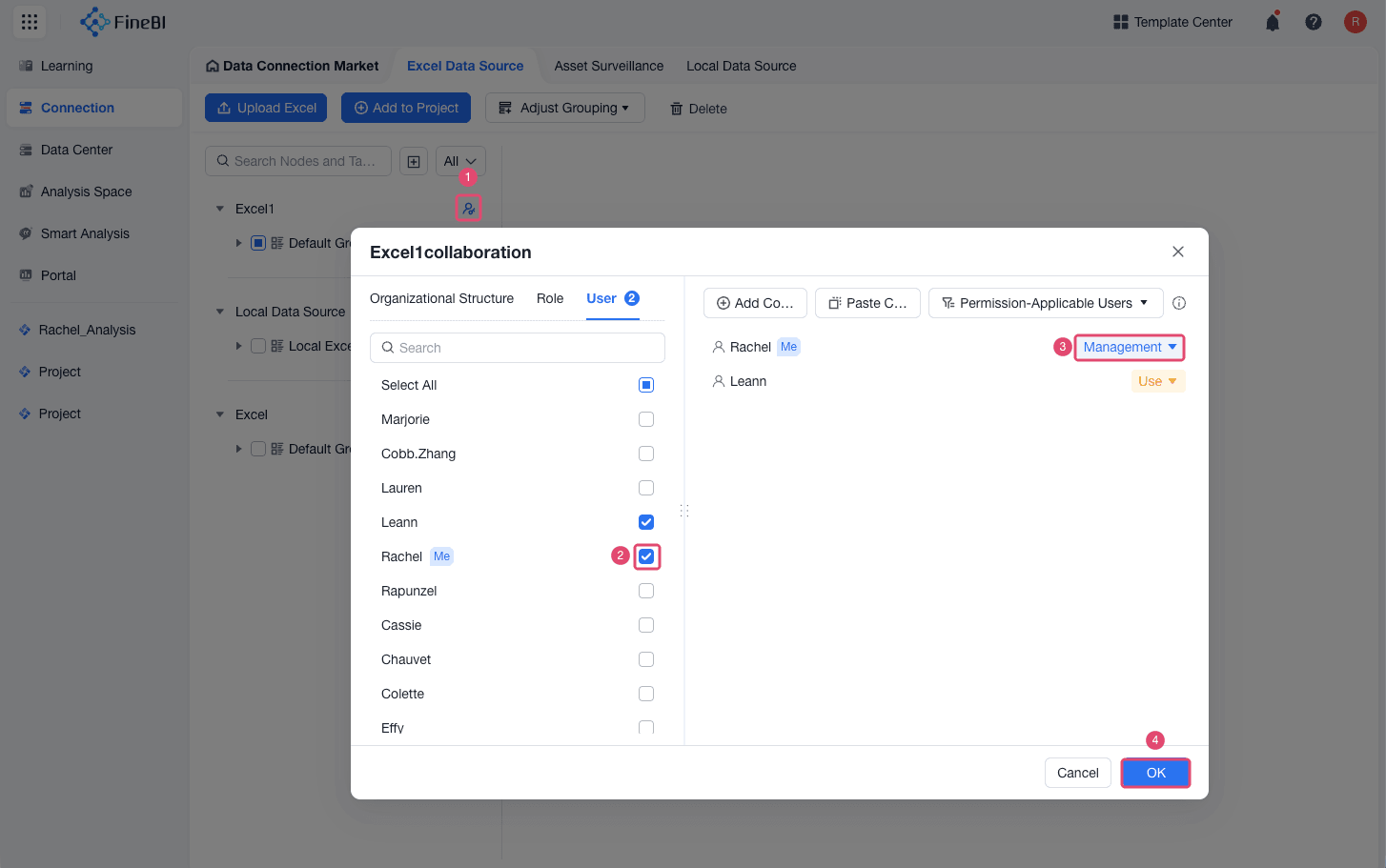
Management
Management is configured on the data connection node. Assign it when a member needs to configure the data source or assign permissions to other recipients.
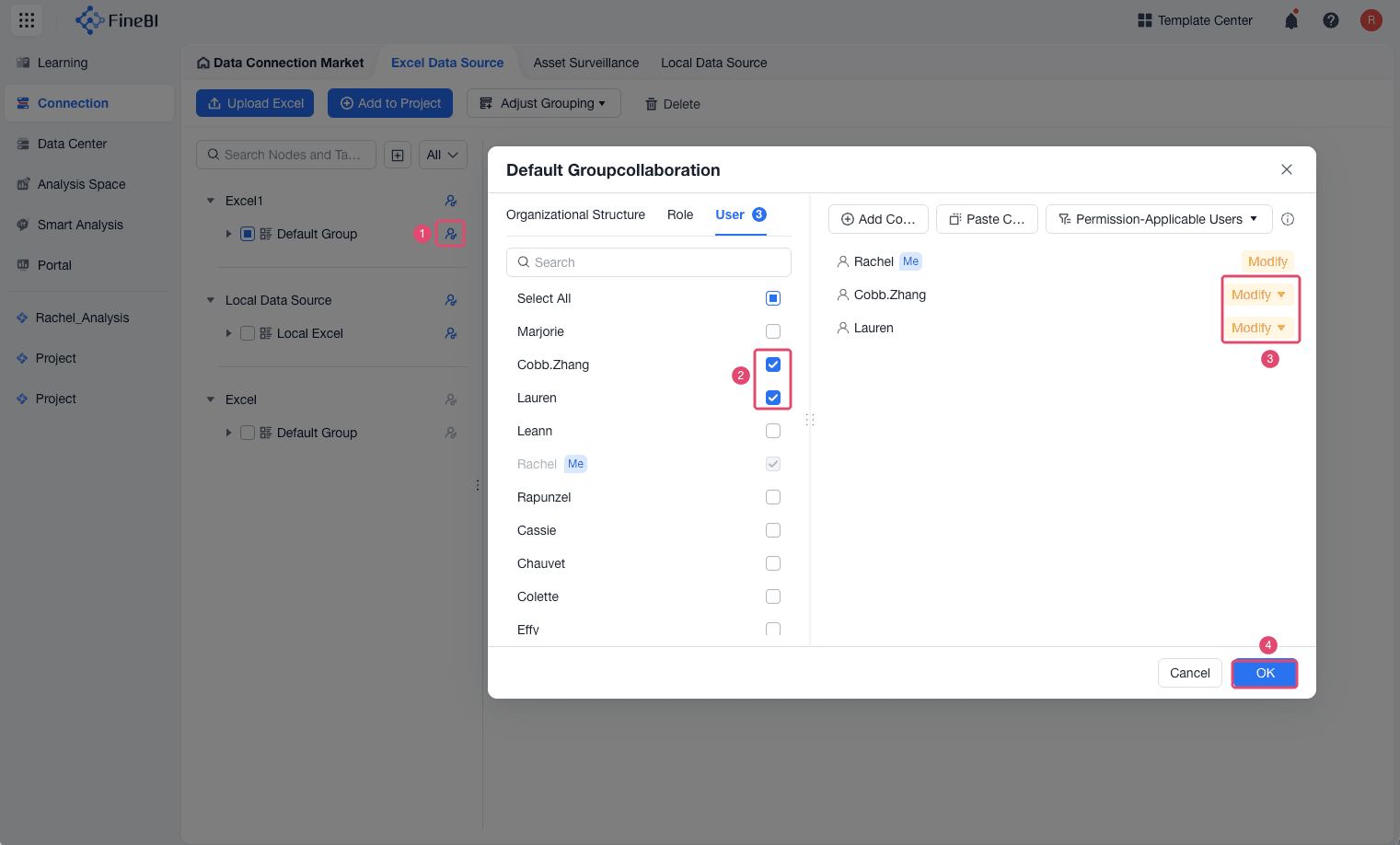
Modify
Grant Modify on data to members who need to modify or synchronize data. Member with the Modify permission on a data table cannot assign permission on this table.
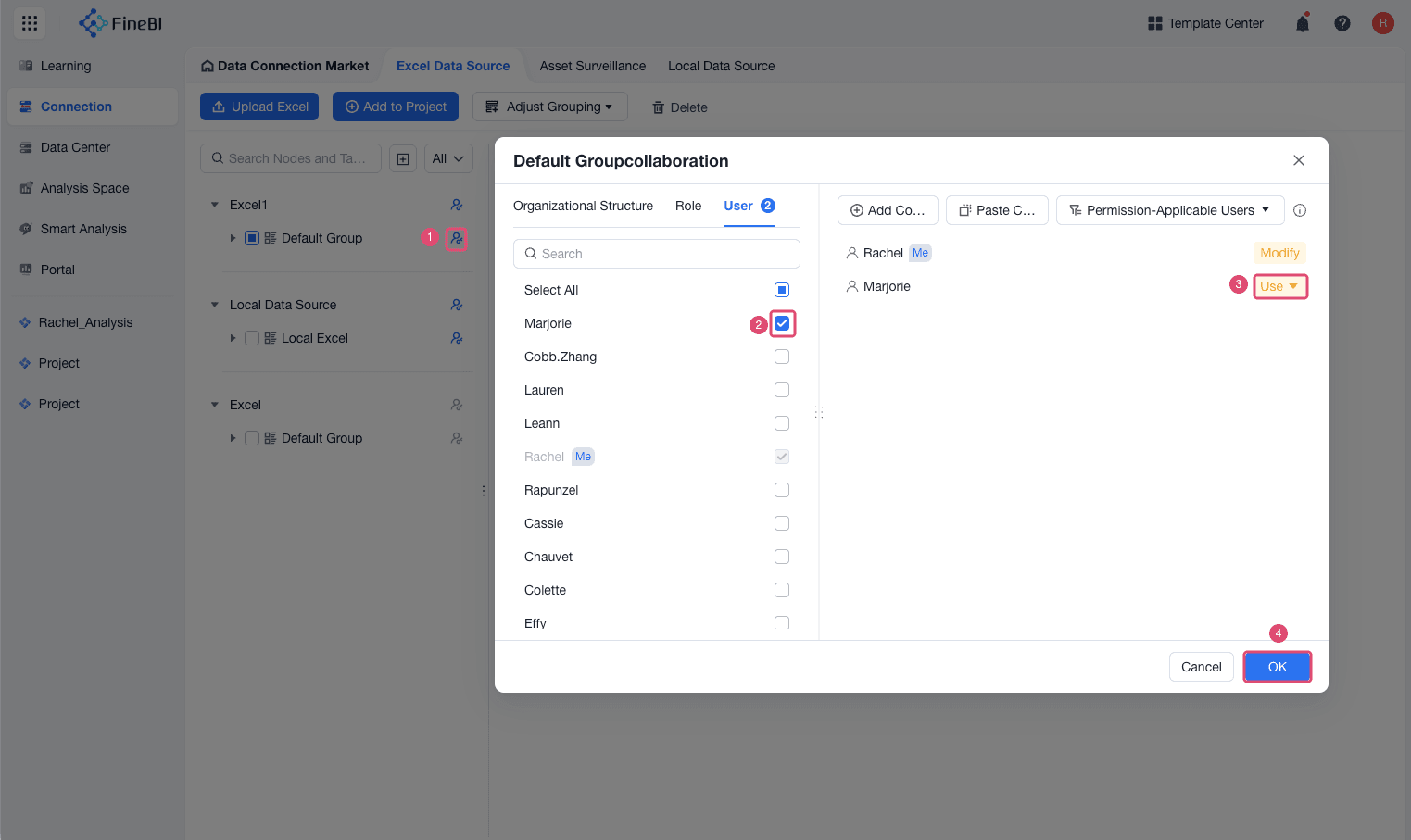
Use
Grant Use permission on data to members who only need to use that data in analysis. Other data source actions are unavailable to these members.
Grant Data Source Permissions
Use this procedure to grant permission on a selected data connection, table, or data group node to recipients.
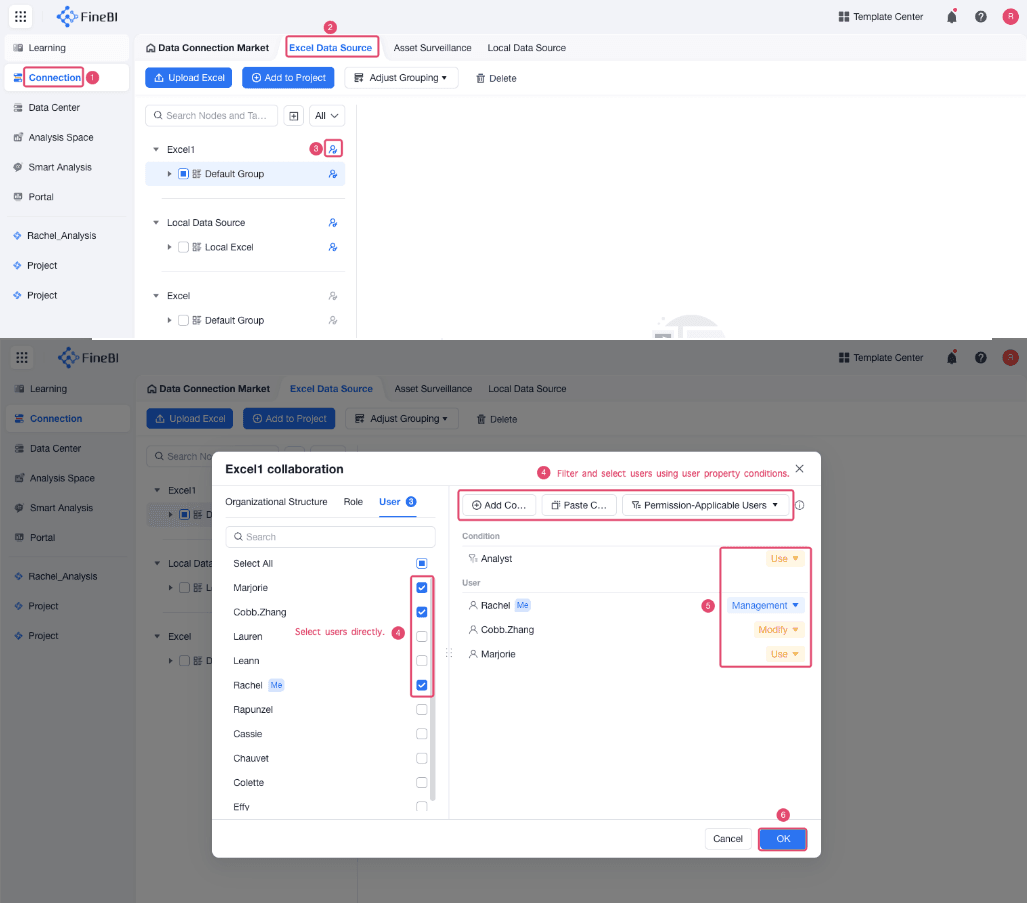
In Connection, find the data connection, data group, or table where the permission should take effect.
Click the collaboration icon on the right side of the target node.
In the collaboration dialog, choose members, spaces, or filter members by user property to define who receives access.
Choose the permission level that you want to grant to the selected recipients: Management, Modify, or Use.
Select OK to save the permission setting.
Grant Permissions to Specific Members
Use this method when only selected members need the same data permission.
In the collaboration dialog, select one or more members who need access to the data connection or the selected data scope.
Choose the permission level that you want to grant to the selected members: Management (applied to the data connection node only), Modify, or Use.
Select OK. The selected members can access the data according to the selected permission level.
Grant Permissions to Members in a Space
Use this method when all members in a space need the same data permission.
In the collaboration dialog, select the space whose members need to access the selected data.
Choose Management, Modify, or Use, and then save the settings.
Grant Permissions to Members by User Properties
Use this method when multiple members that share a user property but belong to different spaces need the same data permission. For example, you can grant access on a performance table to every member whose Position is Team Lead, without selecting the members one by one.
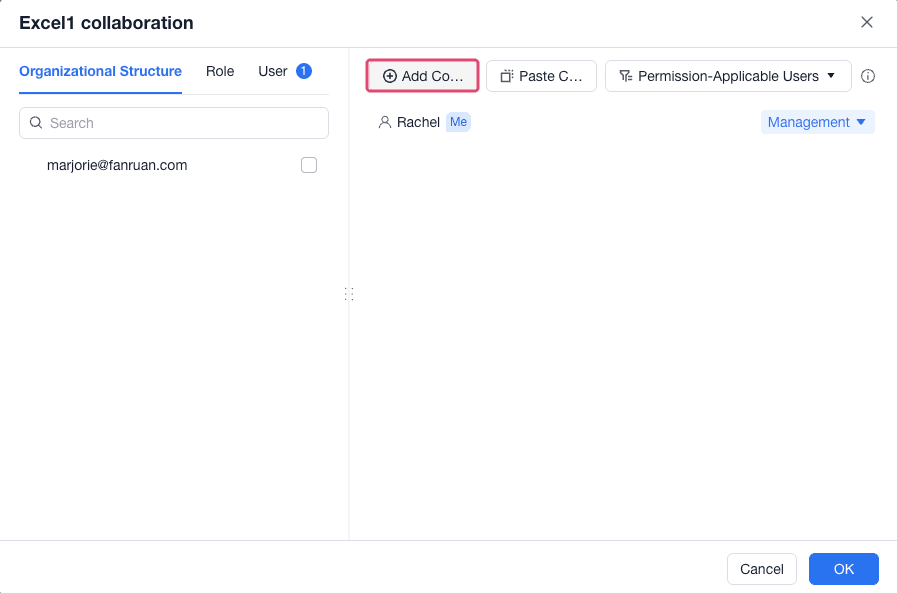
In the collaboration dialog, click Add Conditions.
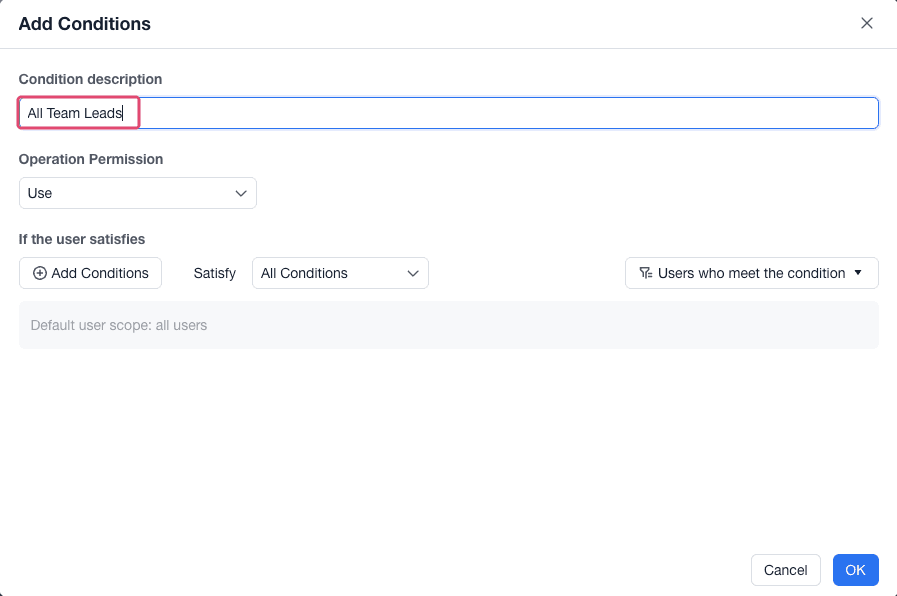
Enter a short summary to facilitate identification later. For example, enter All Team Leads.
Click Add Conditions, select a user property, and define its value. For example, set Position to Team Lead.
The default properties available in the condition list include Mobile Number, Username, and Space of login users. Additional properties, such as Department and Position, must be configured under Management Backend > Product Settings > User Properties by an admin before they appear in the list.
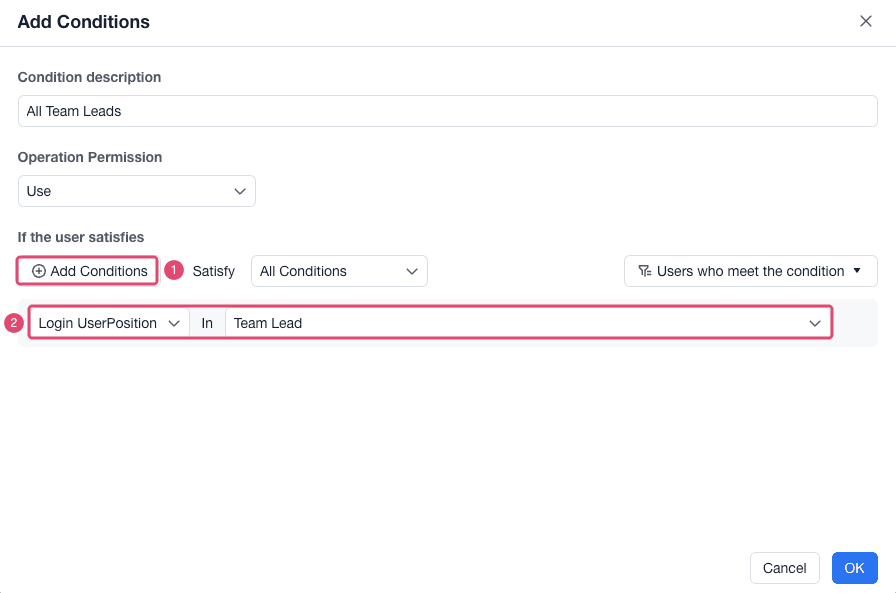
To add more rules, click Add Conditions again, configure another rule, and then choose how members must match the rules:
| Match Option | Description |
|---|---|
| All Conditions | The member must meet every condition. |
| Any Condition | The member must meet at least one condition. |
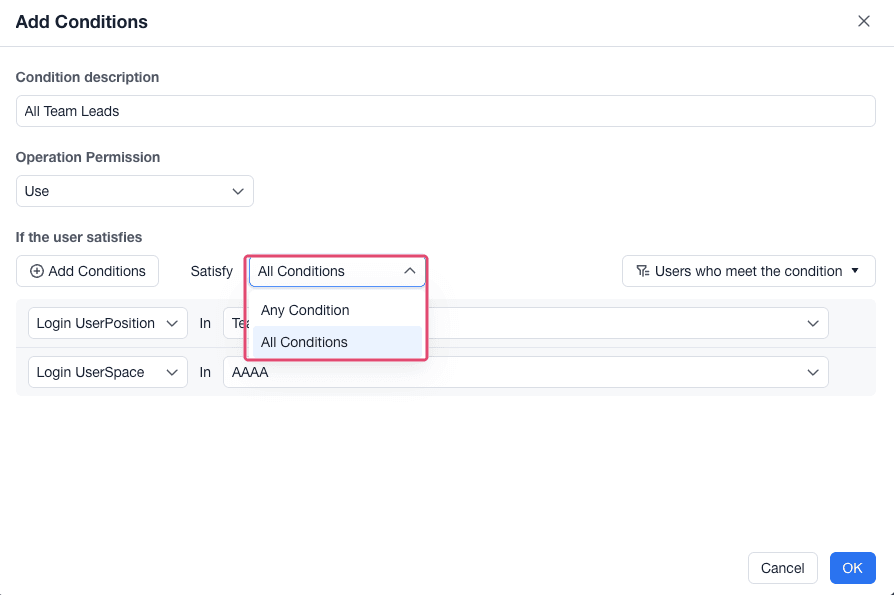
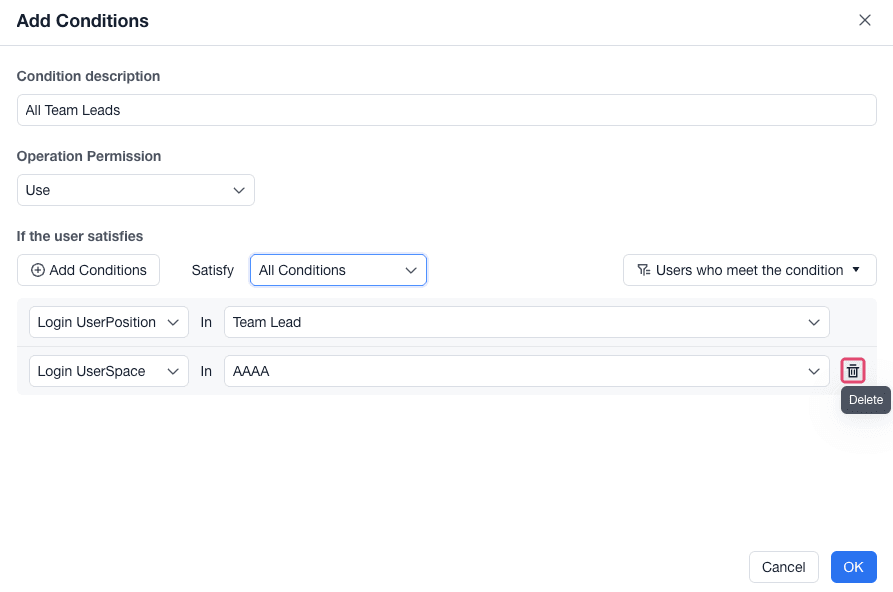
To remove a rule, click the Delete icon next to the condition.
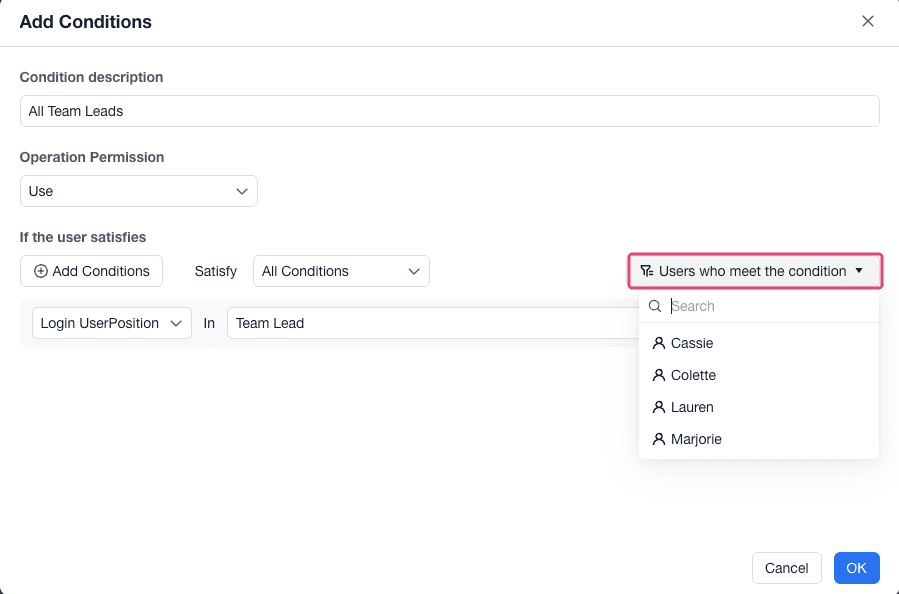
Click Users who meet the condition to check which members meet the current conditions. Review the list to confirm that the condition matches your intended recipients.
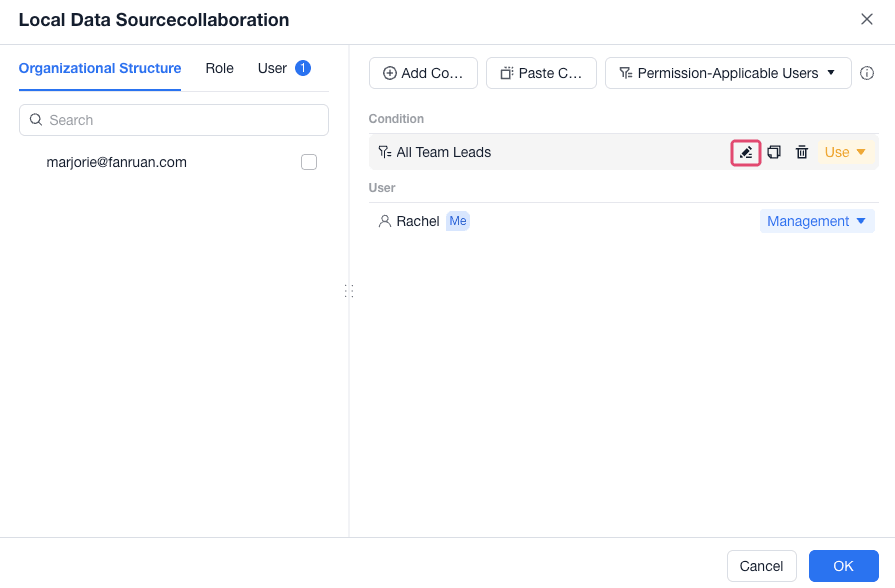
Save the condition and select the permission level to grant. To change the condition later, click the Edit icon.
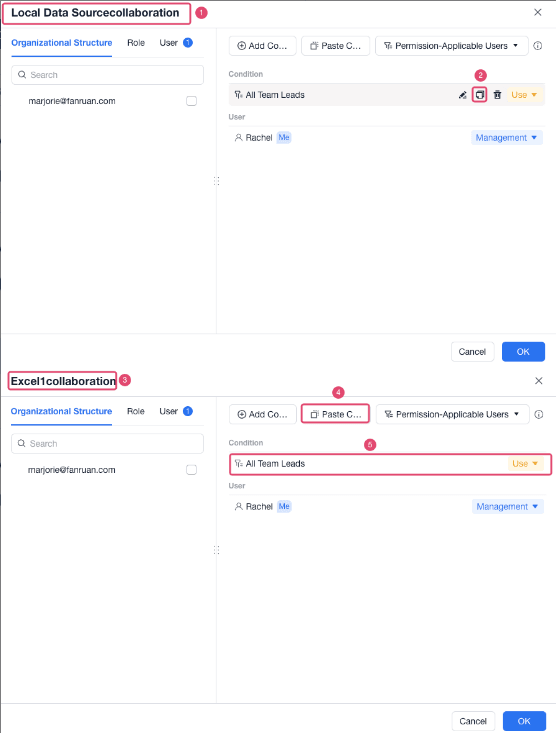
Reuse Permission Conditions
If you need to apply the same condition in multiple permission settings, copy the condition and paste it into another setting.
Understand Permission Inheritance
FineBI Cloud calculates a member's effective permissions from all the permission settings that apply to the member.
| Rule | Description |
|---|---|
| Space and member permissions are additive. | If a member receives permissions from both a space and a direct member setting, the effective permission is the union of both settings. Removing one setting does not remove permissions granted by the other setting. |
| The data connection creator receives Management on the data source by default. | The creator can manage the data source and automatically has Modify and Use permissions for all data under the data source. |
| Higher permission levels include lower permission levels. | Management includes Modify and Use. Modify includes Use. |