Use Personal Settings to manage your account profile, organization membership, login records, and security settings in FineBI Cloud.
Open Personal Settings
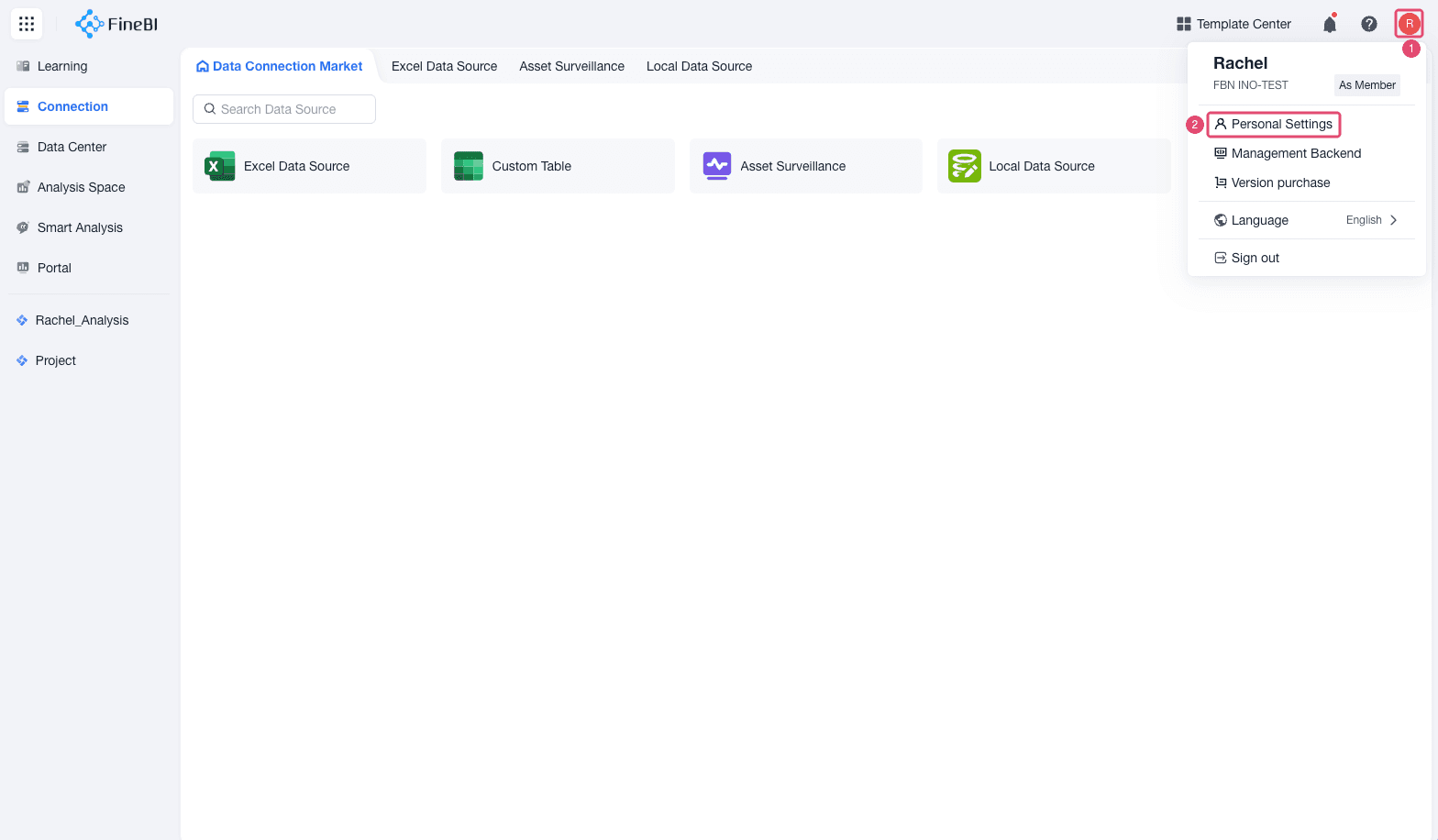
Log in to FineBI Cloud, and then select your avatar in the upper-right corner.
Click Personal Settings from the account menu.
Basic Information
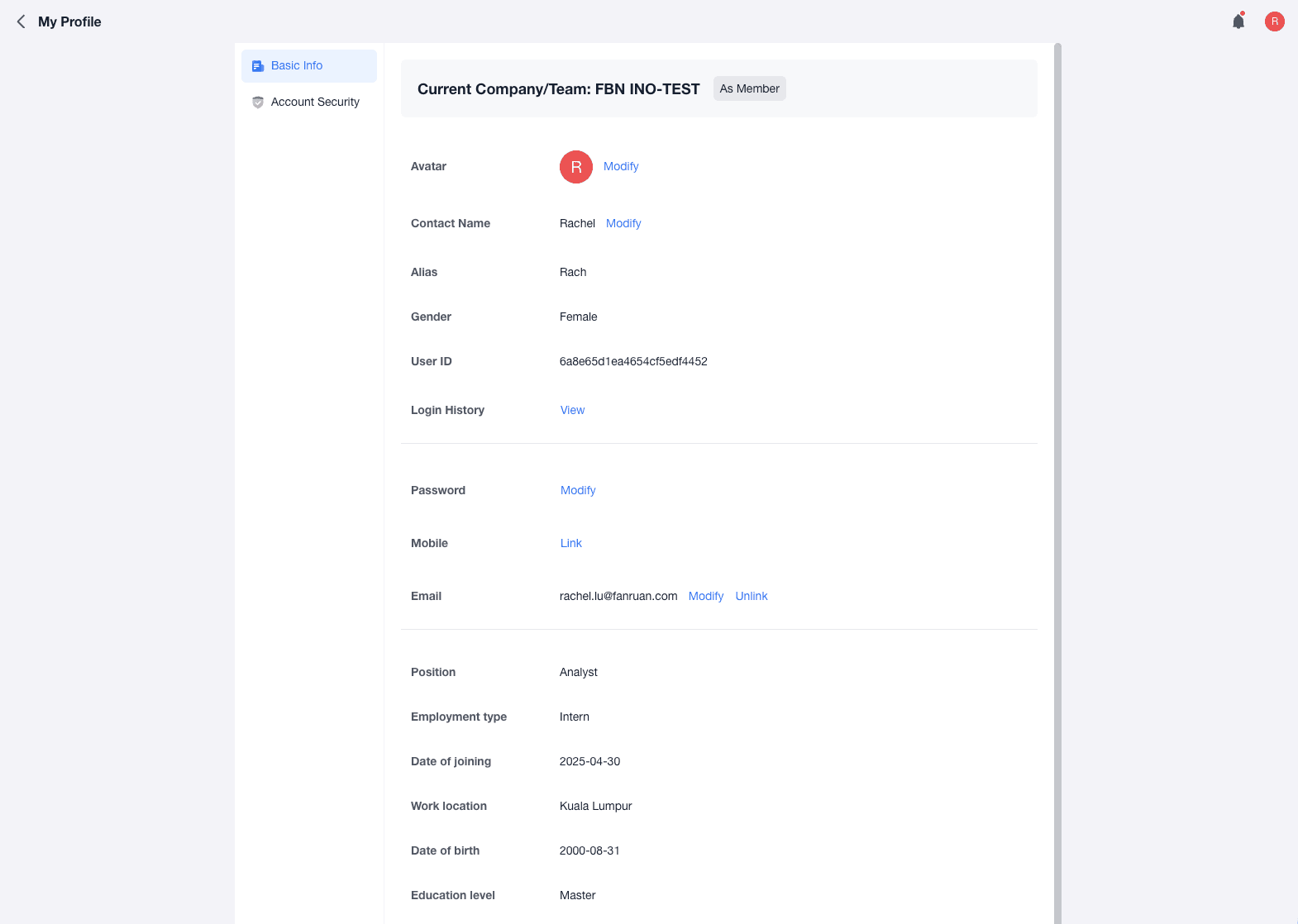
The Basic Info tab shows the organization you are currently in, your profile information, and your login records.
| Area | What You Can Do |
|---|---|
| Current organization | View the organization you are using. If leaving the organization is supported for your account, you can hover over the organization name and click Exit Organization. |
| Profile information | View or edit account details such as Alias, Password, Mobile, Email, and other member information fields. |
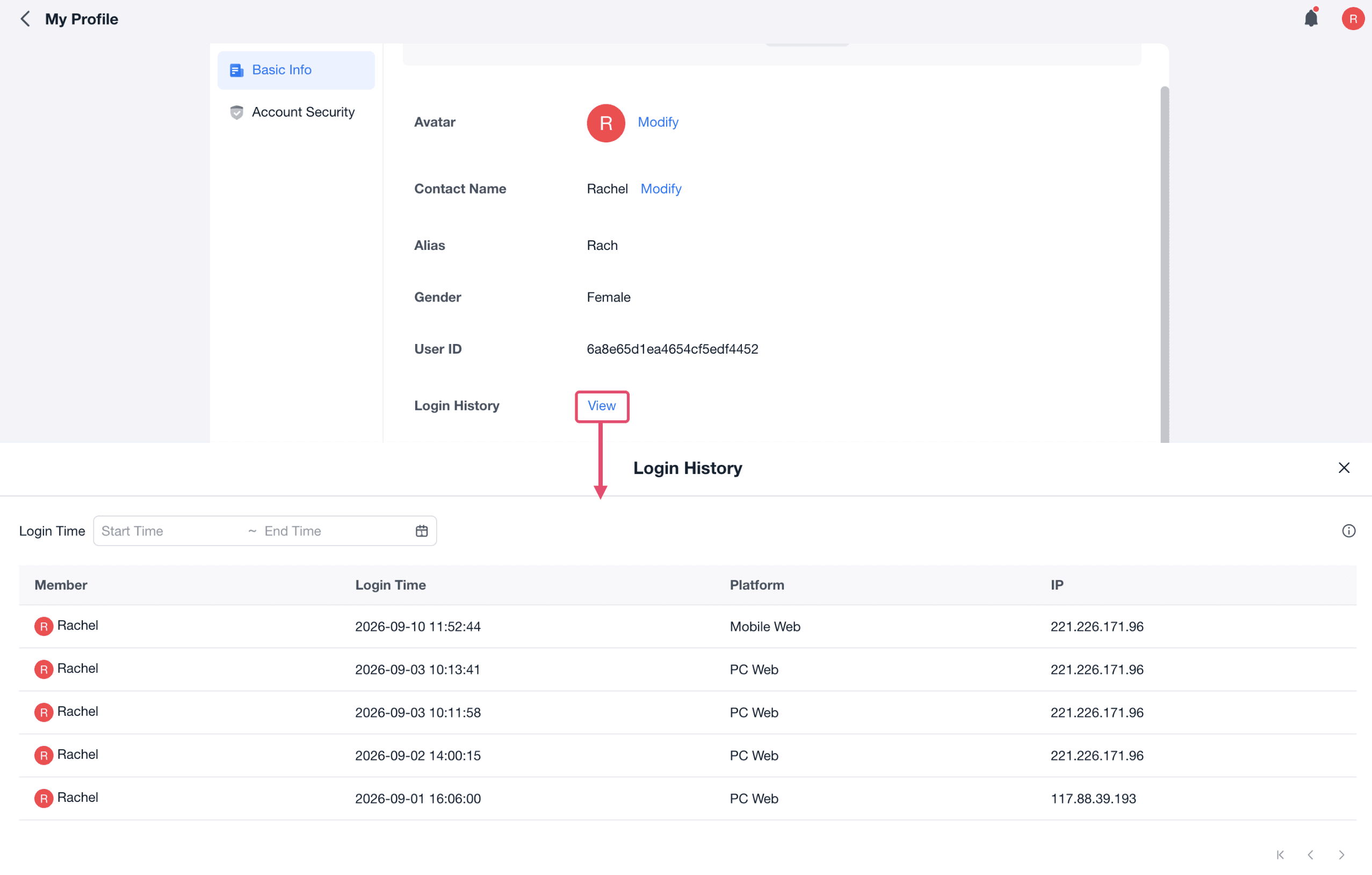
| Login history | View recent login records when you need to check whether your account was used from an unfamiliar time or location. |
Profile Fields
| Field | Description |
|---|---|
| User ID | The unique ID of your account It is generated automatically and uneditable. |
| Alias | The display name used by your account The alias cannot be empty and must not exceed the character limit shown in the product. |
| Password | The password used to sign in to your account When you change it, you may need to verify the current password first. |
| Phone | The phone number bound to your account It may be used for sign-in, verification, and notifications when supported. |
| The email address bound to your account It may be used for sign-in, verification, and notifications when supported. | |
| Avatar | The profile image shown for your account or organization member profile |
| Member information | Organization-level profile fields, such as name, alias, title, workplace, employment type, birthday, or hire date. Available fields depend on your organization's settings. |
View Login History
Click View to check recent sign-in activity for your account.
Account Security
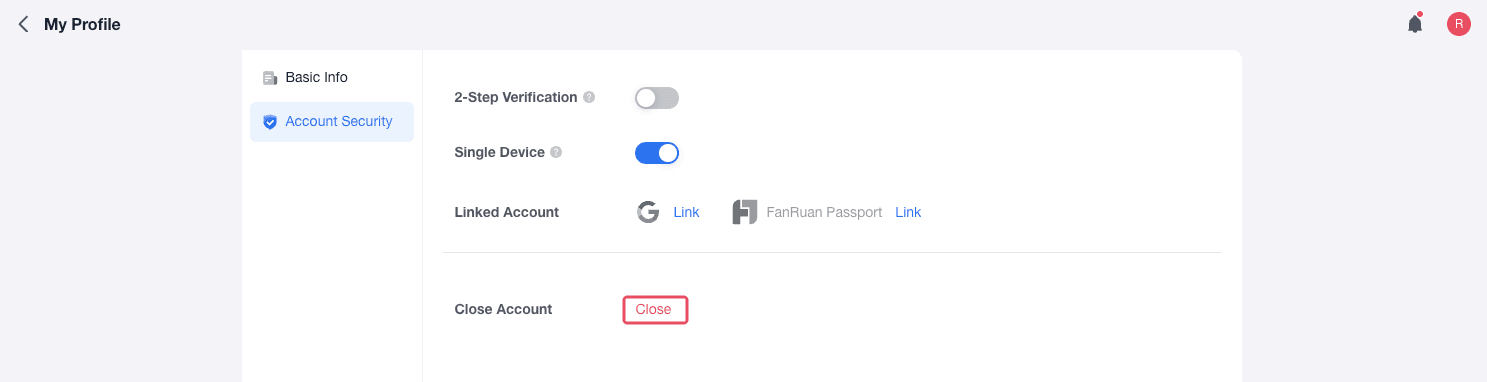
The Account Security tab helps protect your sign-in process and manage sign-in methods linked to your account.
| Setting | What It Does |
|---|---|
| Single Device | Signs out other active sessions when your account signs in from a new session. |
| Linked Account | Lets you bind or unbind supported third-party sign-in methods when they are available in your workspace. |
| Close Account | Lets an organization owner permanently cancel an organization when this action is supported and all required checks are complete. |
Prevent Simultaneous Login
Enable Single Device when you want a new sign-in to invalidate other active sessions for the same account.
Choose Personal Settings > Account Security.
Enable Single Device, and click OK.
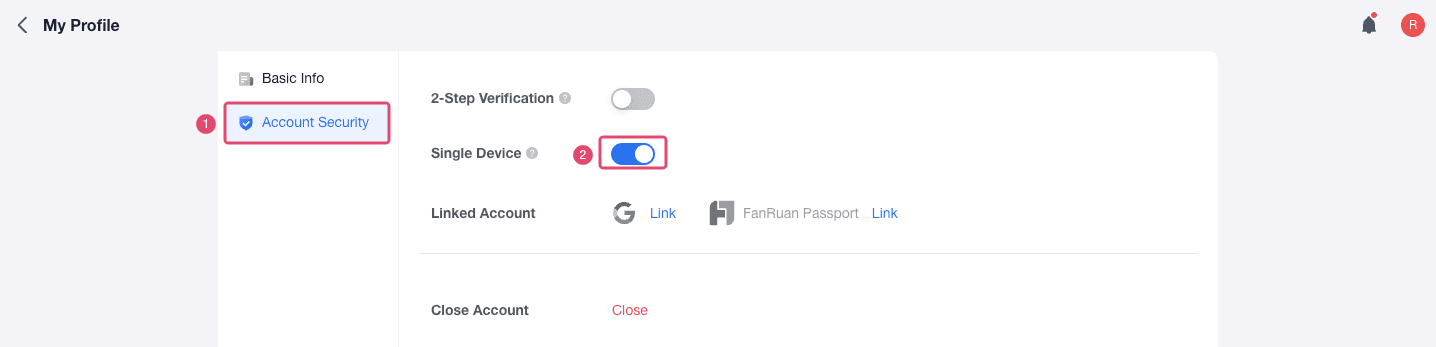
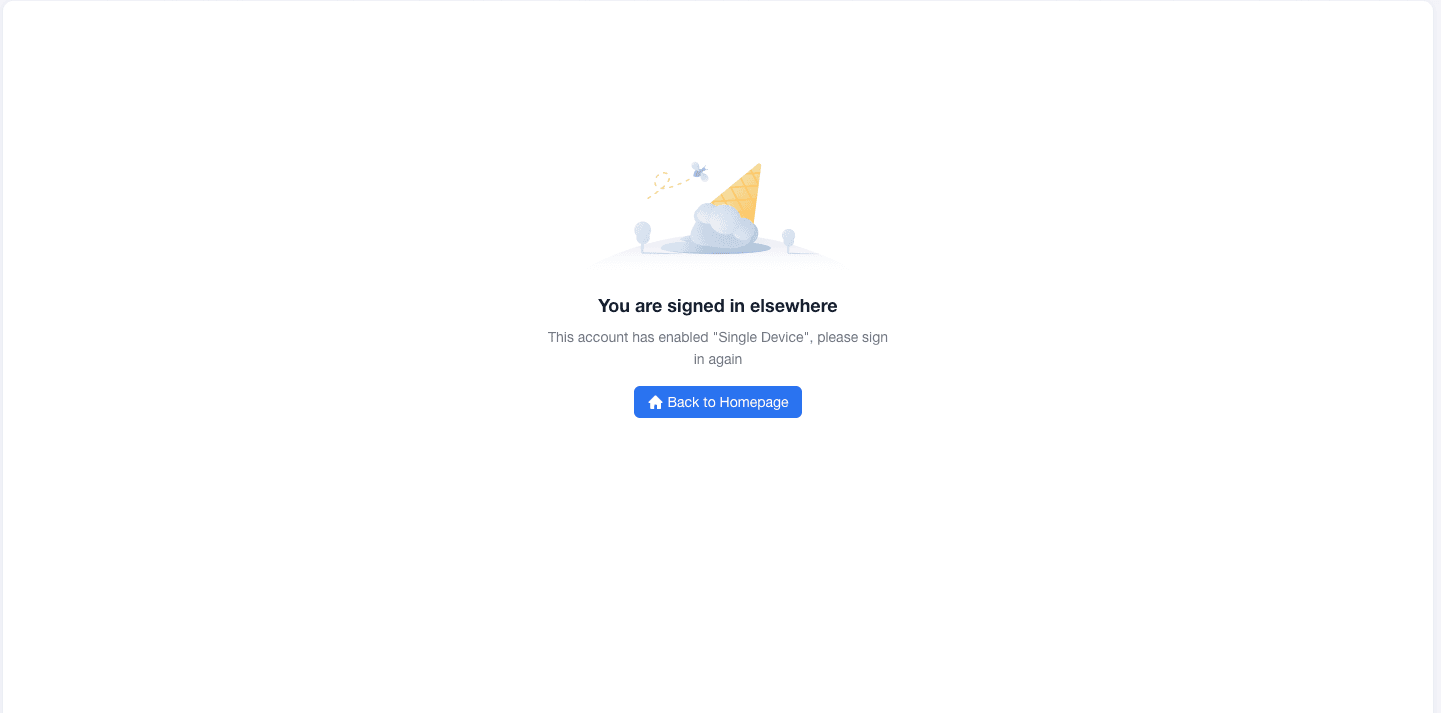
After this setting is enabled, signing in from a new browser or device may sign out an earlier session. If you see a message that your account signed in elsewhere and you did not perform that action, sign in again and change your password immediately.
Manage Account Binding
If your workspace supports third-party account binding, you can bind another sign-in method to your FineBI Cloud account.
Choose Personal Settings > Account Security.
Find the supported sign-in method, and then select Link.
Follow the authorization prompt to complete the binding.
Close an Account
Close Account permanently deletes the organization's business data and cannot be undone. Use this option only when you (the organization owner) has confirmed that the organization and its data are no longer needed.