Use this article to troubleshoot Excel files that fail to upload or look different after they are uploaded to FineBI Cloud.
Before You Upload
Check the Excel file before you upload it. Many upload issues come from file format, empty tables, unsupported content, or workbook structure.
| Check Item | Requirement |
|---|---|
| File format | Use .xls, .xlsx, .xlsmor .csv. |
| Workbook content | Remove complex formulas, VBA macros, and other unsupported workbook logic. |
| Empty columns | Columns are removed during upload if the header cell and the first 100 rows in the column are empty. |
| Number of columns | Each Excel sheet or CSV file can have up to 1,000 columns. |
| Number of sheets | Each Excel file can contain up to 100 sheets. |
| Cell types | If a cell type is set in Excel, FineBI Cloud keeps the recognized type after upload. |
| Leading or trailing characters | For text fields, FineBI Cloud removes leading and trailing spaces, non-breaking spaces, tabs, and line breaks when you upload, replace, append, or edit Excel data and save it. Characters in the middle of a value are kept. |
| Error values | Excel error values such as #DIV/0!, #VALUE!, #REF!, #NAME?, #N/A, #NUM!, and #NULL! are recognized as empty values after upload. |
Fix Upload Failures
Use the message shown during upload to decide what to check first.
Error Message:
Supported formats: XLS, CSV, and XLSX
Solution:
Check the file extension and upload a supported Excel or CSV file.
Understand Merged Cells After Upload
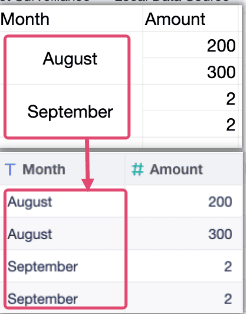
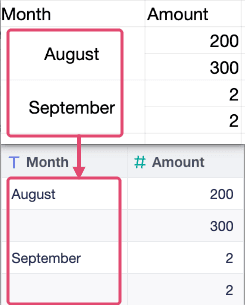
If the Excel file contains merged cells, FineBI Cloud splits the merged cells during upload.
For files of 5 MB or less, FineBI Cloud splits the merged cells and fills the split cells with the original merged-cell value.