Use Sort to arrange rows in an analysis table by one or more fields. You can sort data in ascending order, descending order, or a custom order for text fields.
Sort Entry Points
You can access Sort from a column header or from the analysis step panel.
| Entry | What You Can Do |
|---|---|
| Column header | Quickly sort the current table by the selected field.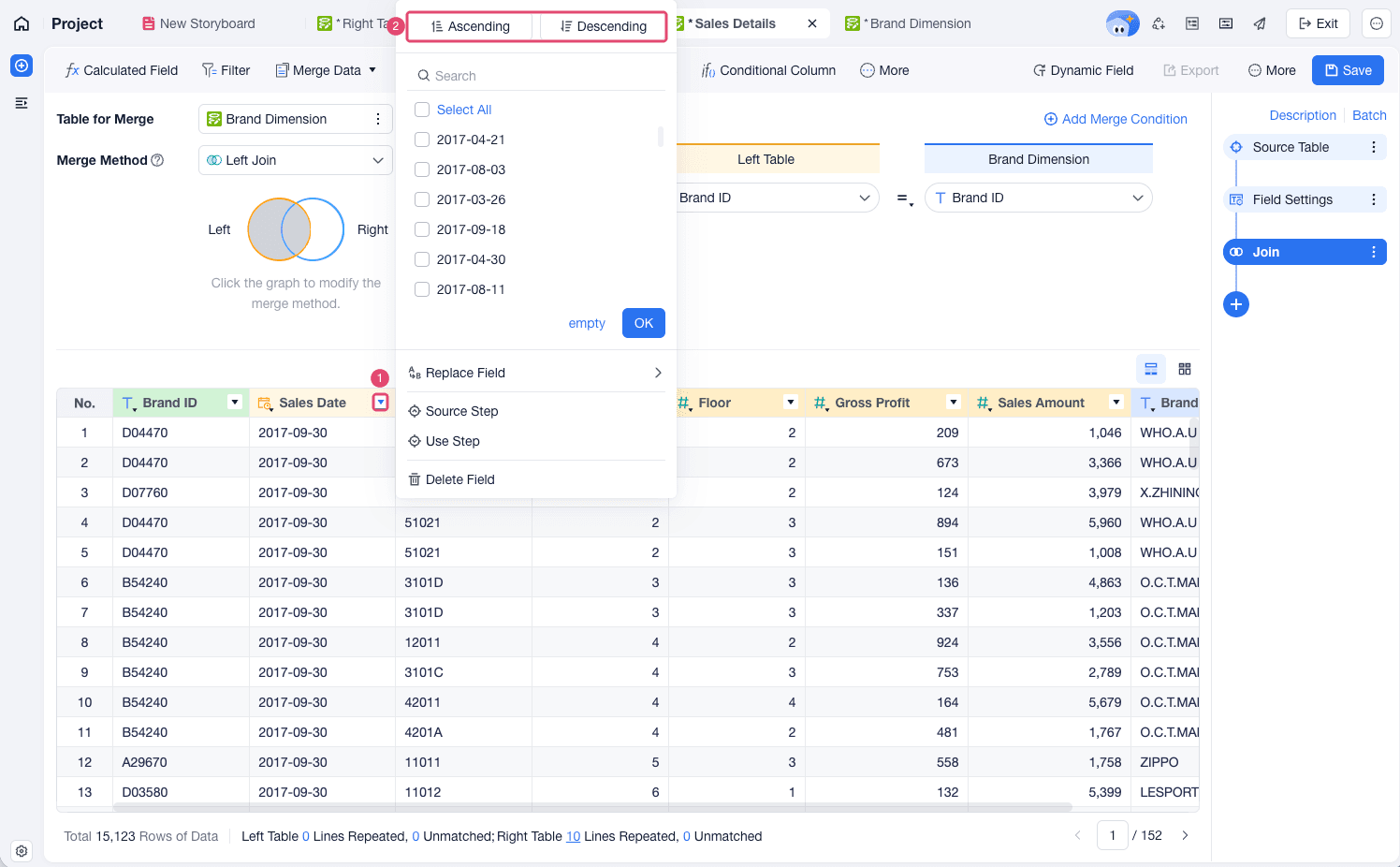 |
| + > Sort | Add a Sort step and configure sorting rules. 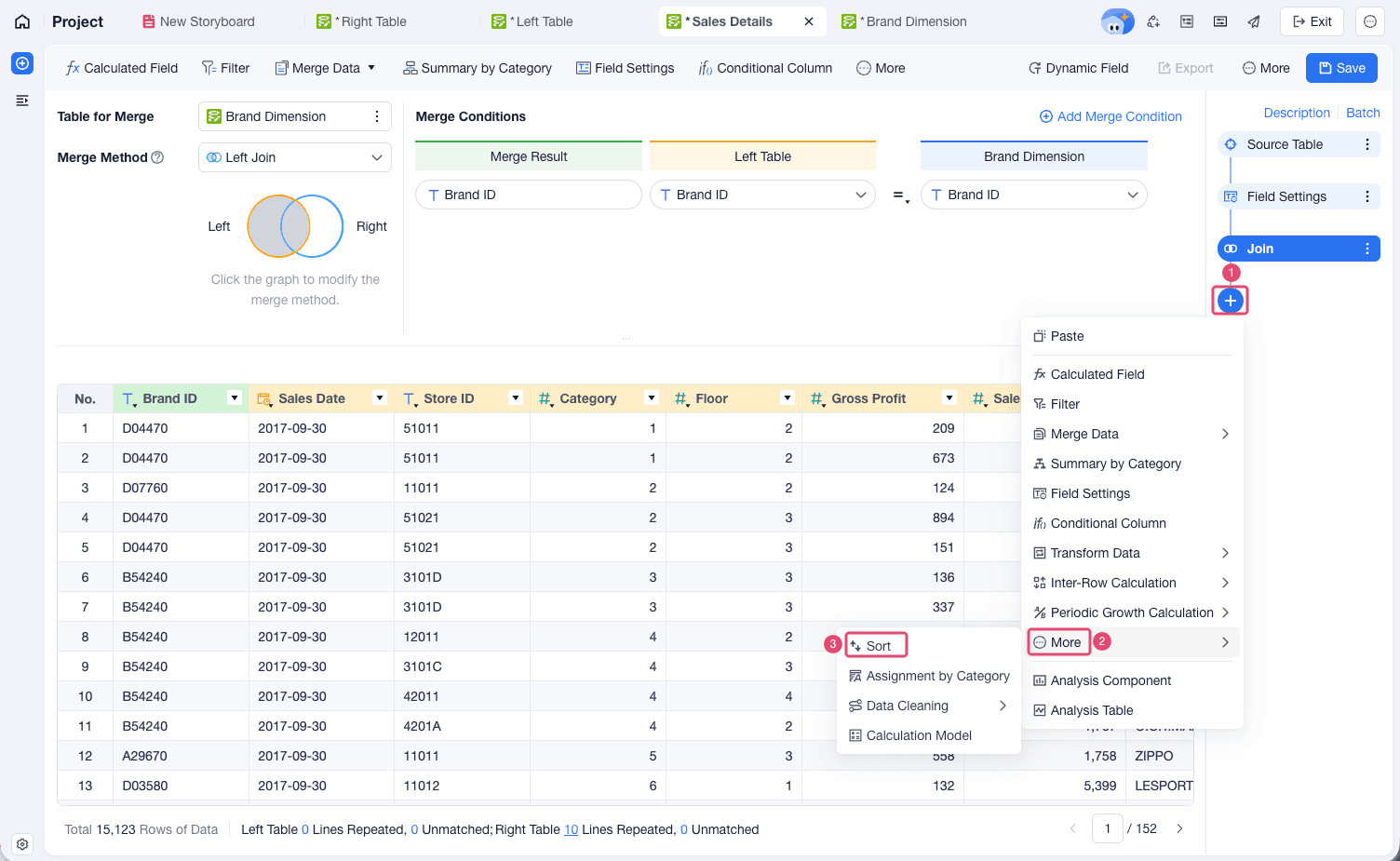 |
Sort Options
FineBI Cloud supports the following sort options in analysis tables.
| Option | What It Does |
|---|---|
| Ascending | Sorts values from smallest to largest. For dates, the earliest date appears first. |
| Descending | Sorts values from largest to smallest. For dates, the latest date appears first. |
| Custom | Sorts text values by a custom sequence that you define. Only text fields support custom sorting. |
Sort in Ascending Order
Use Ascending when you want smaller values, earlier dates, or alphabetically earlier text values to appear first.
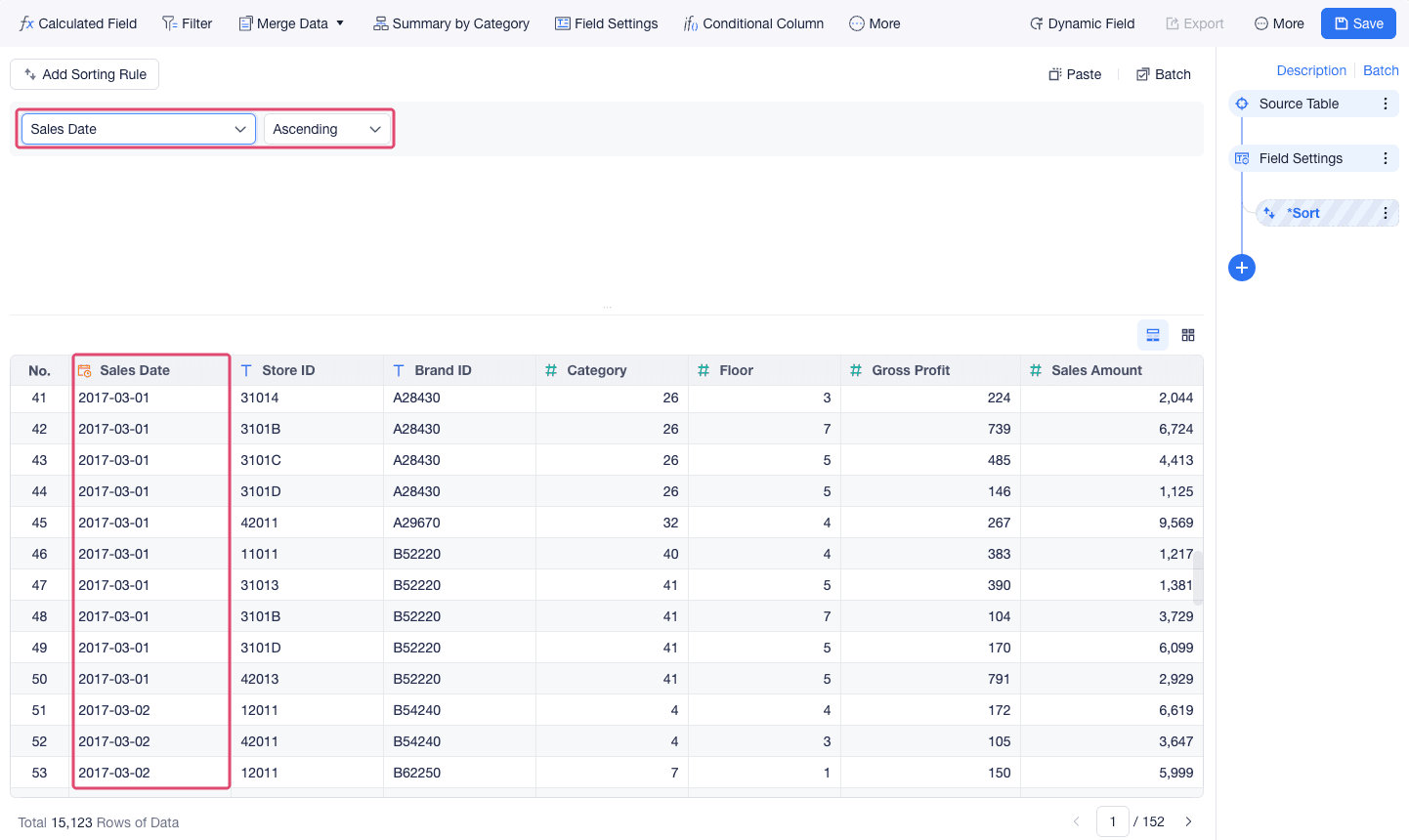
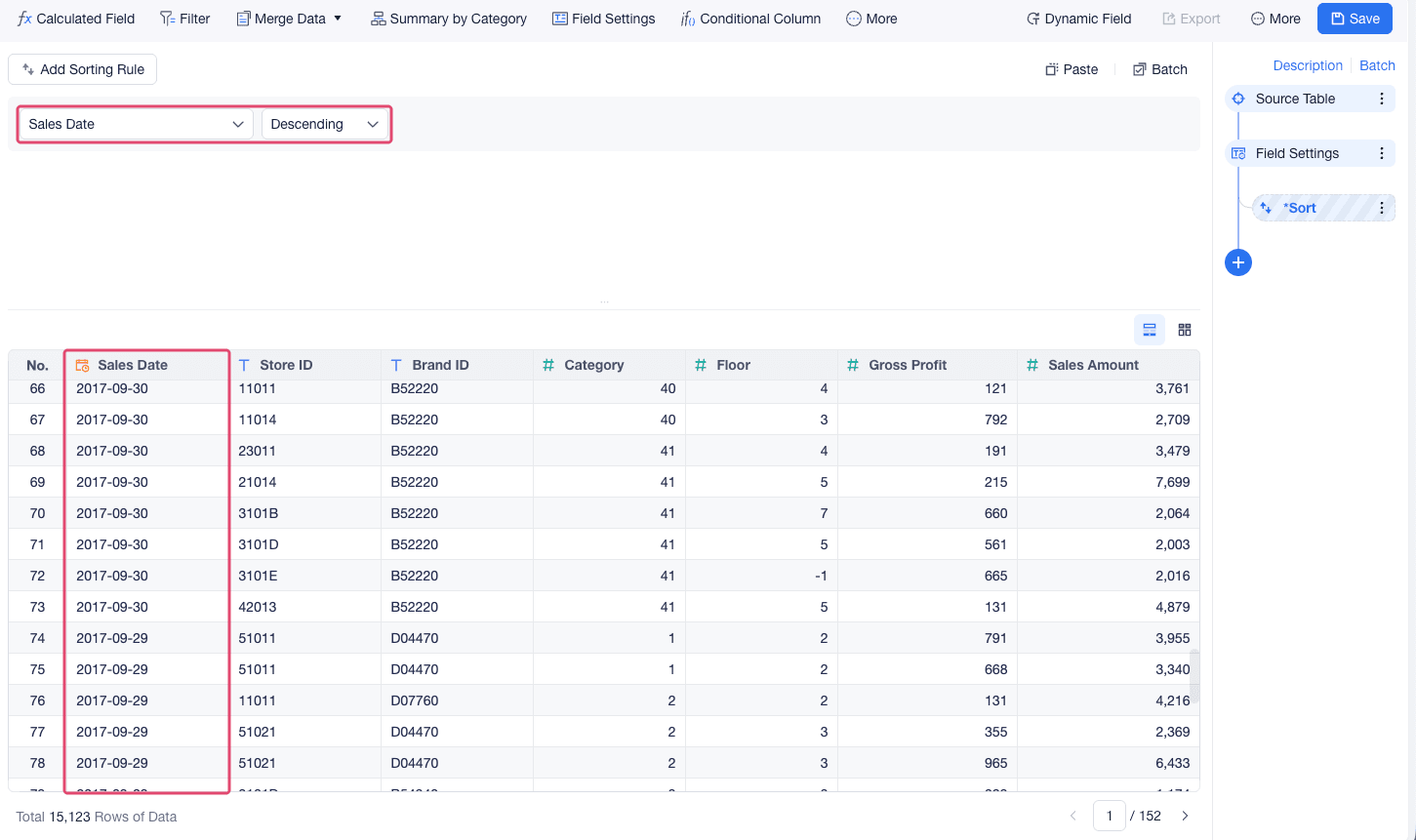
For example, sort Sales Date in ascending order to view the earliest sales records first.
Sort in Descending Order
Use Descending when you want larger values, later dates, or alphabetically later text values to appear first.
For example, sort Sales Date in descending order to view the latest sales records first.
Use Custom Sort
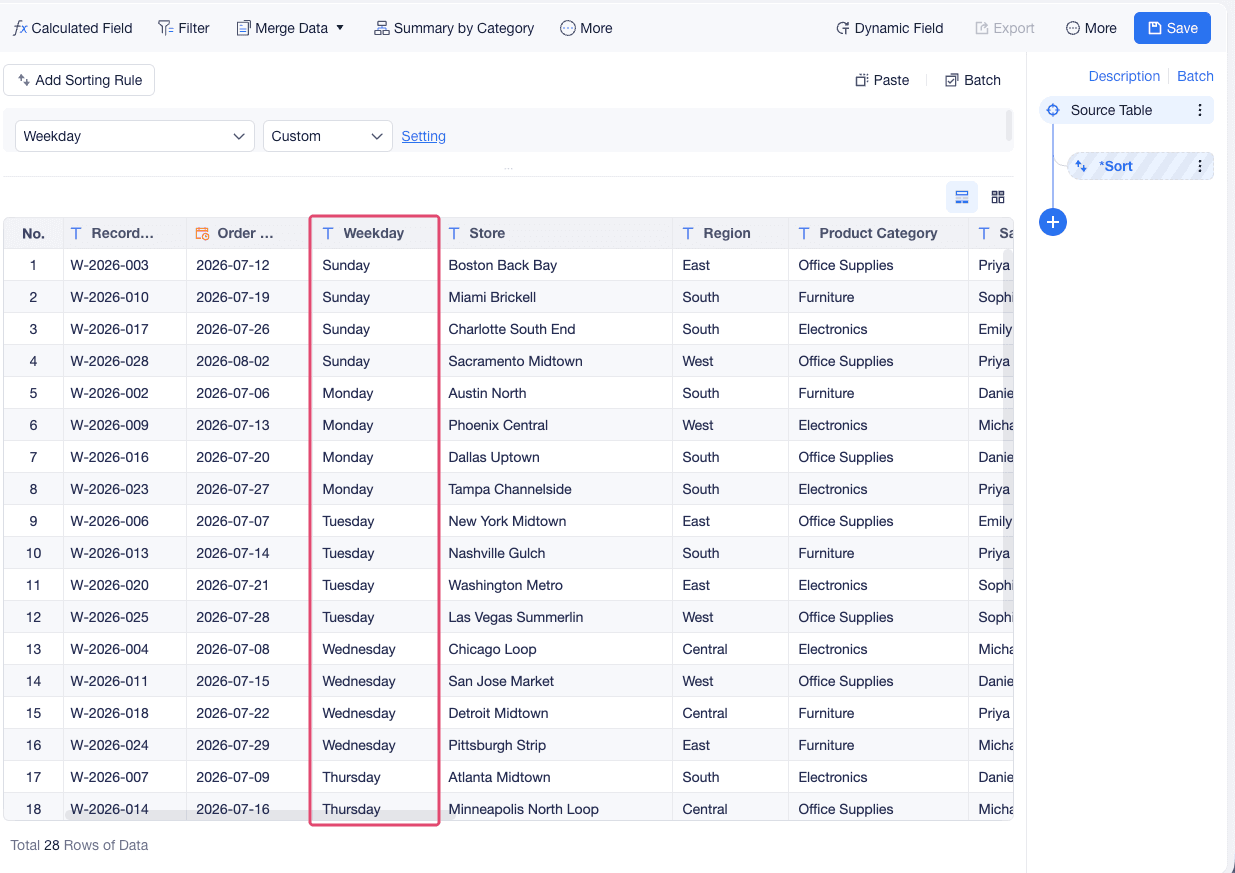
Use Custom when text values need to follow a business-defined order instead of the default alphabetical order. For example, you can set a custom sort order for weekdays, such as Sunday to Saturday.
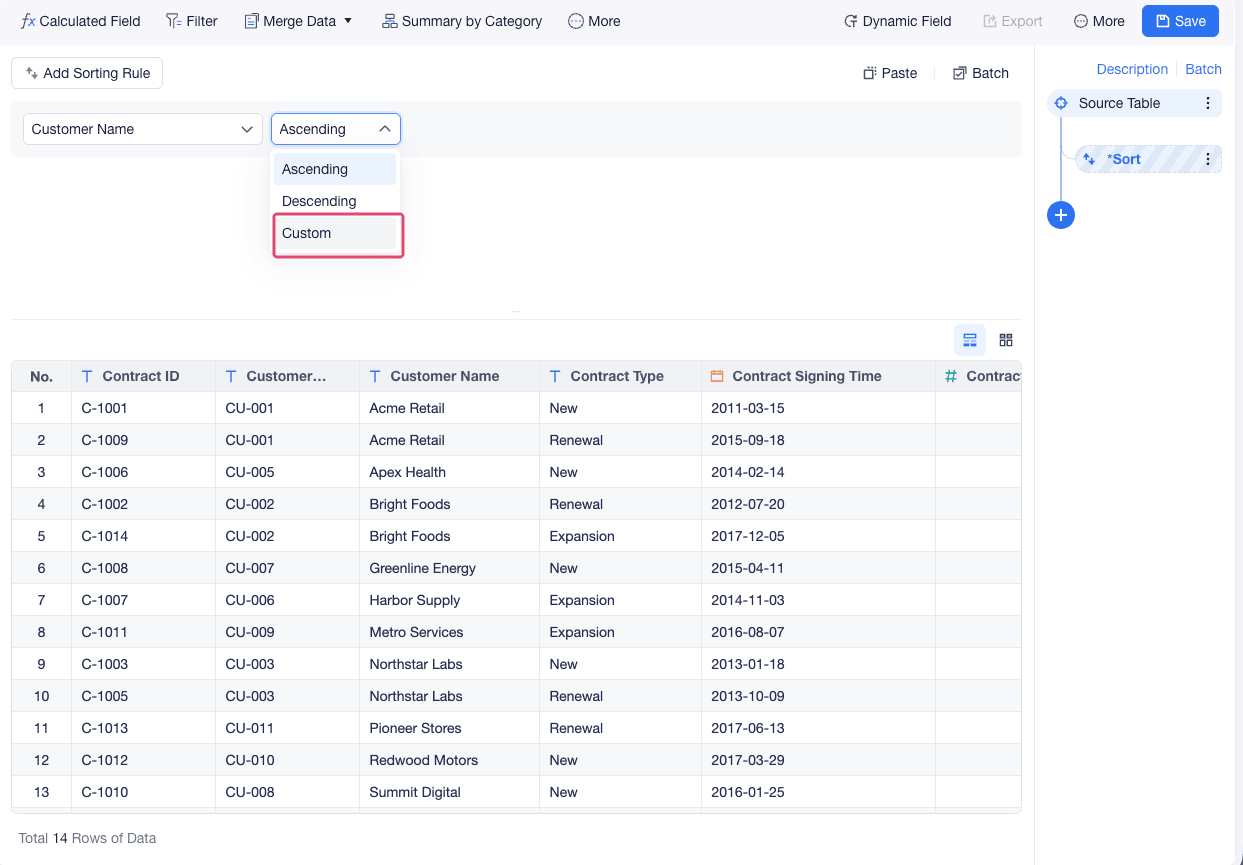
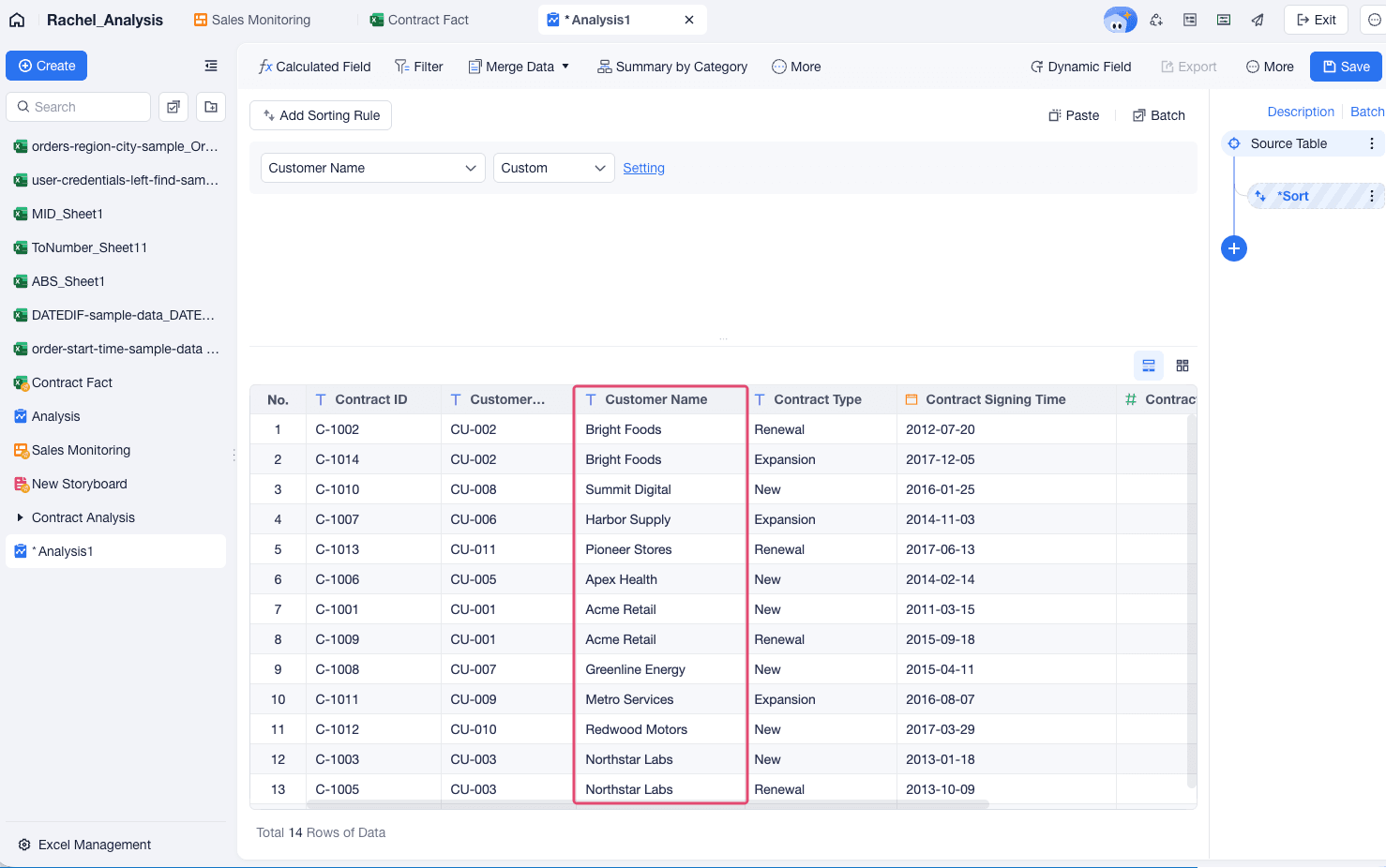
Add a Sort step, select a text field, and select Custom from the sort dropdown menu.
Add values to the custom sort area in one of the following ways:
- Click Add All to move all available values into the right area.
- Drag values into the right area. You can use
ShiftorCtrlto select multiple values. - Click Add Sort Value and enter values manually.
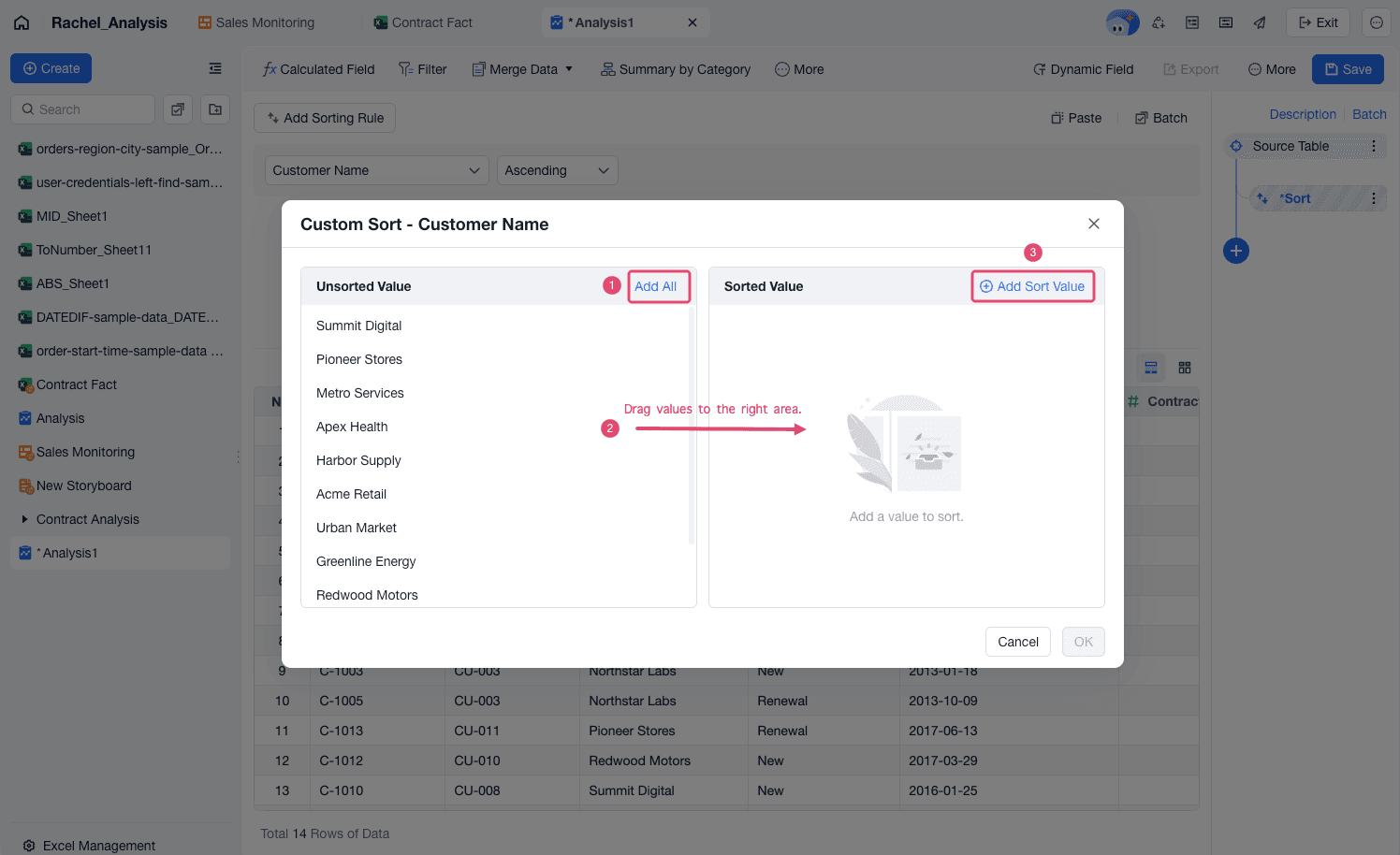
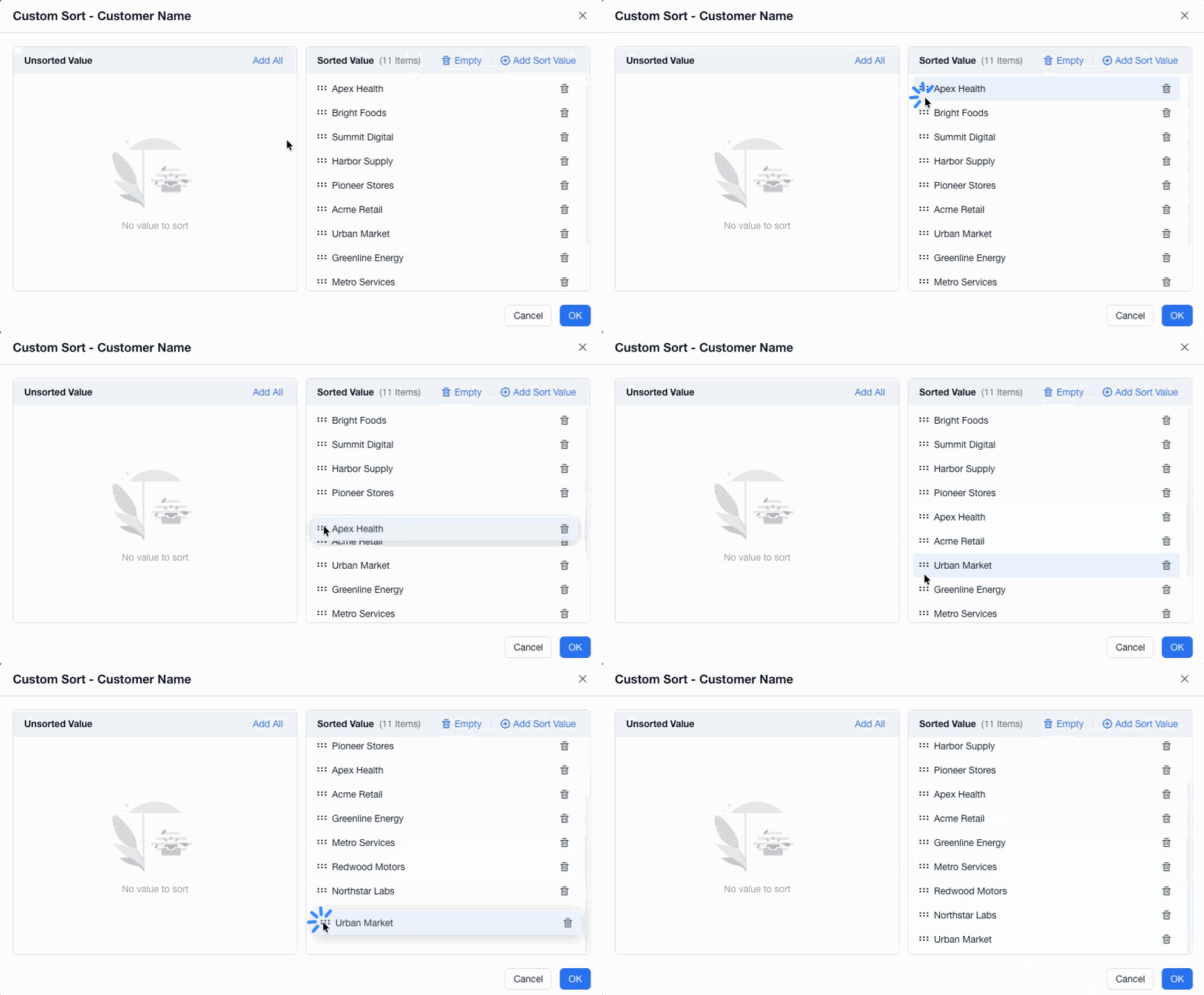
Drag and drop values to change the display order.
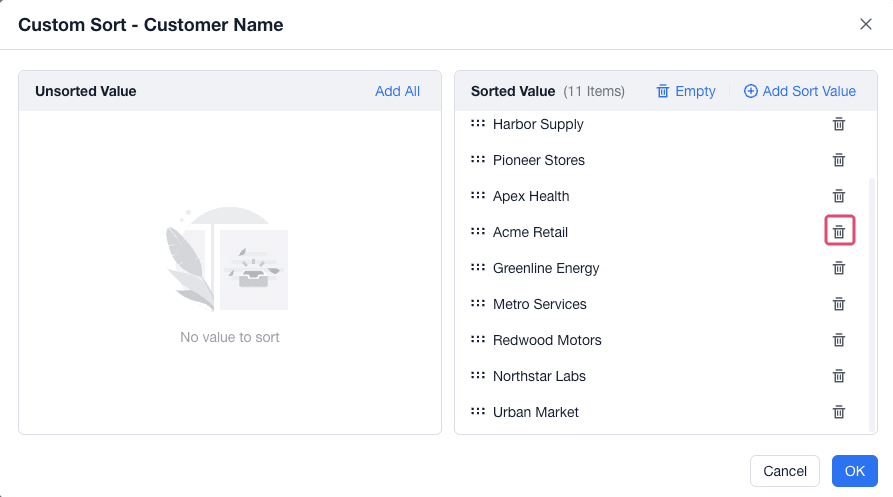
Delete values that should not be included in the custom sequence.
Select OK. The field values are sorted by the custom sequence.
Add Multiple Sorting Rules
Use multiple sorting rules when one field is not enough to determine the final row order. FineBI Cloud applies sorting rules in order from top to bottom.
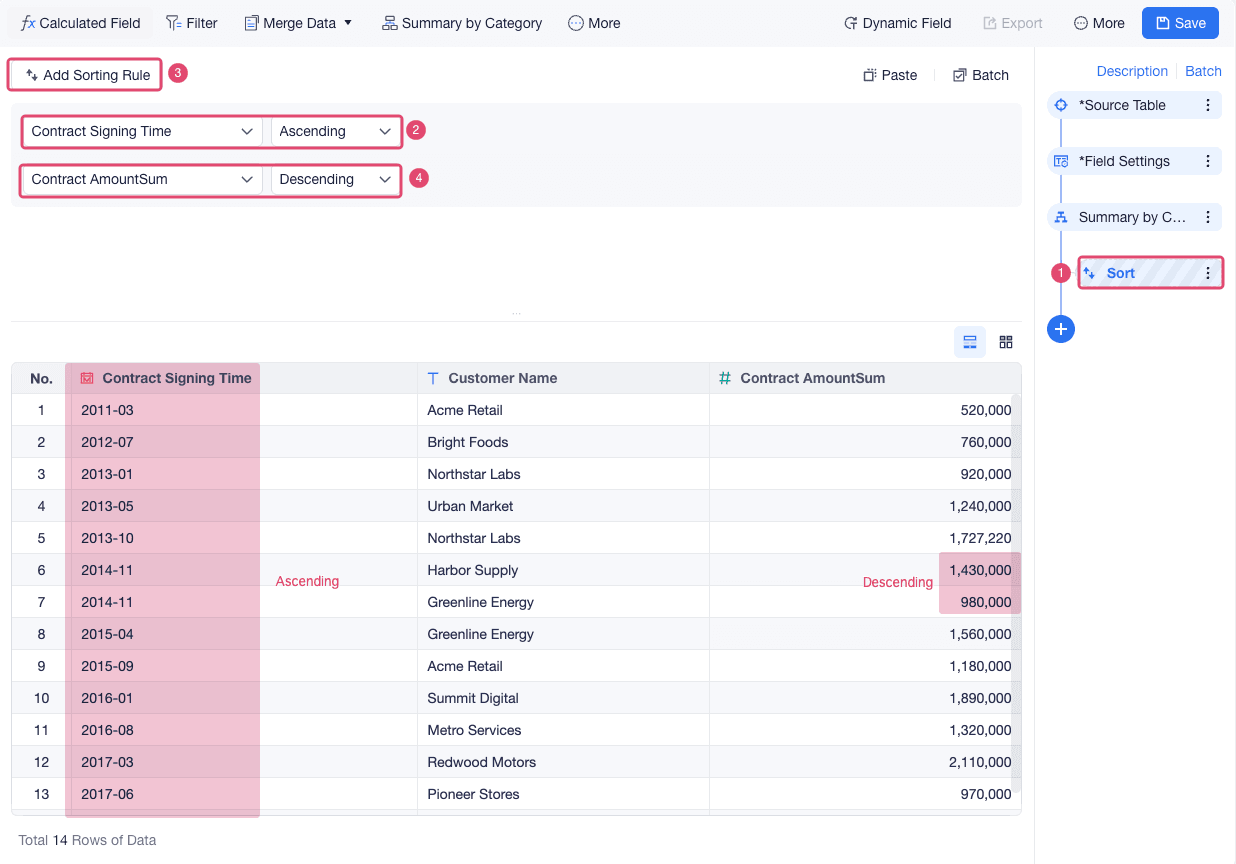
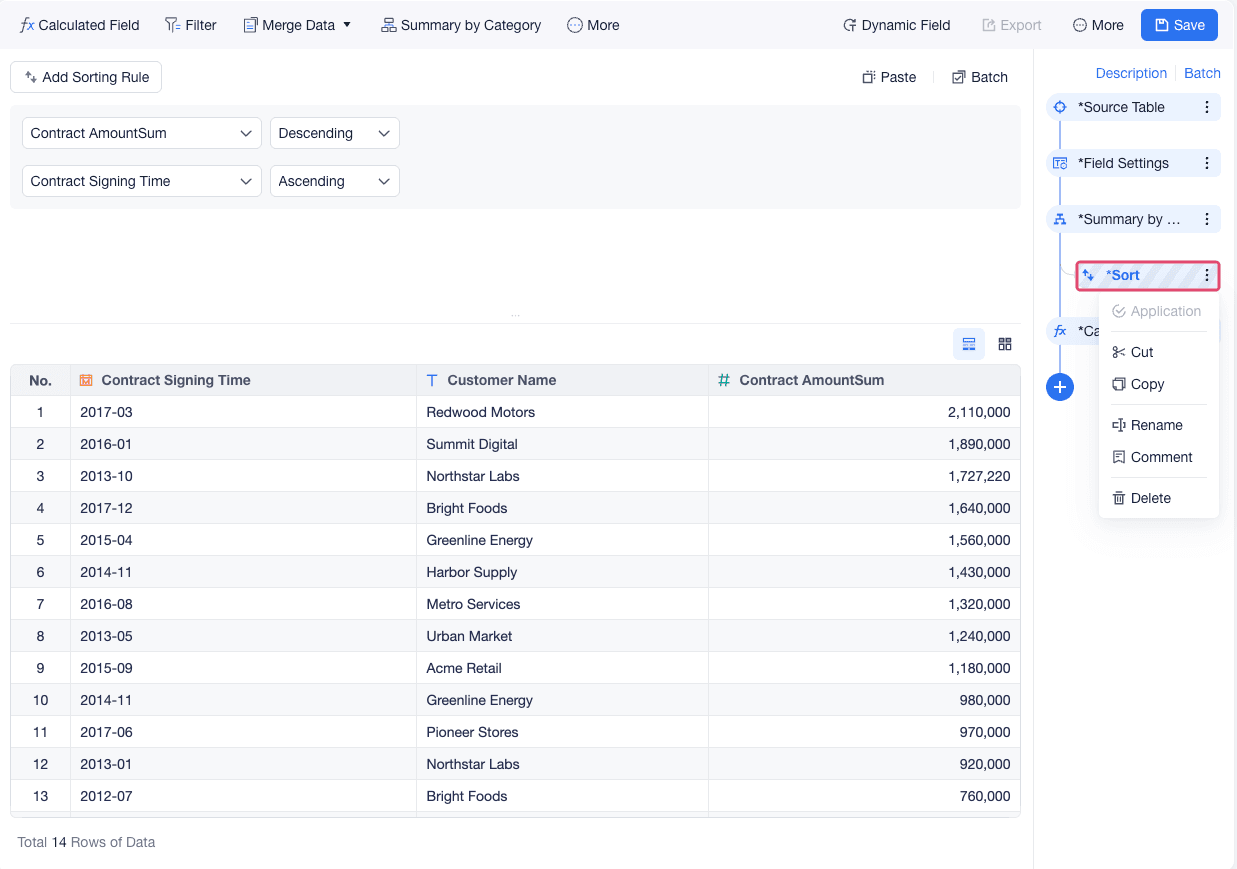
For example, after you use Summary by Category on Contract Fact to set Contract Signing Time to YYYY-MM granularity and summarize Contract Amount, you can sort Contract Signing Time in ascending order and then sort Contract Amount in descending order.
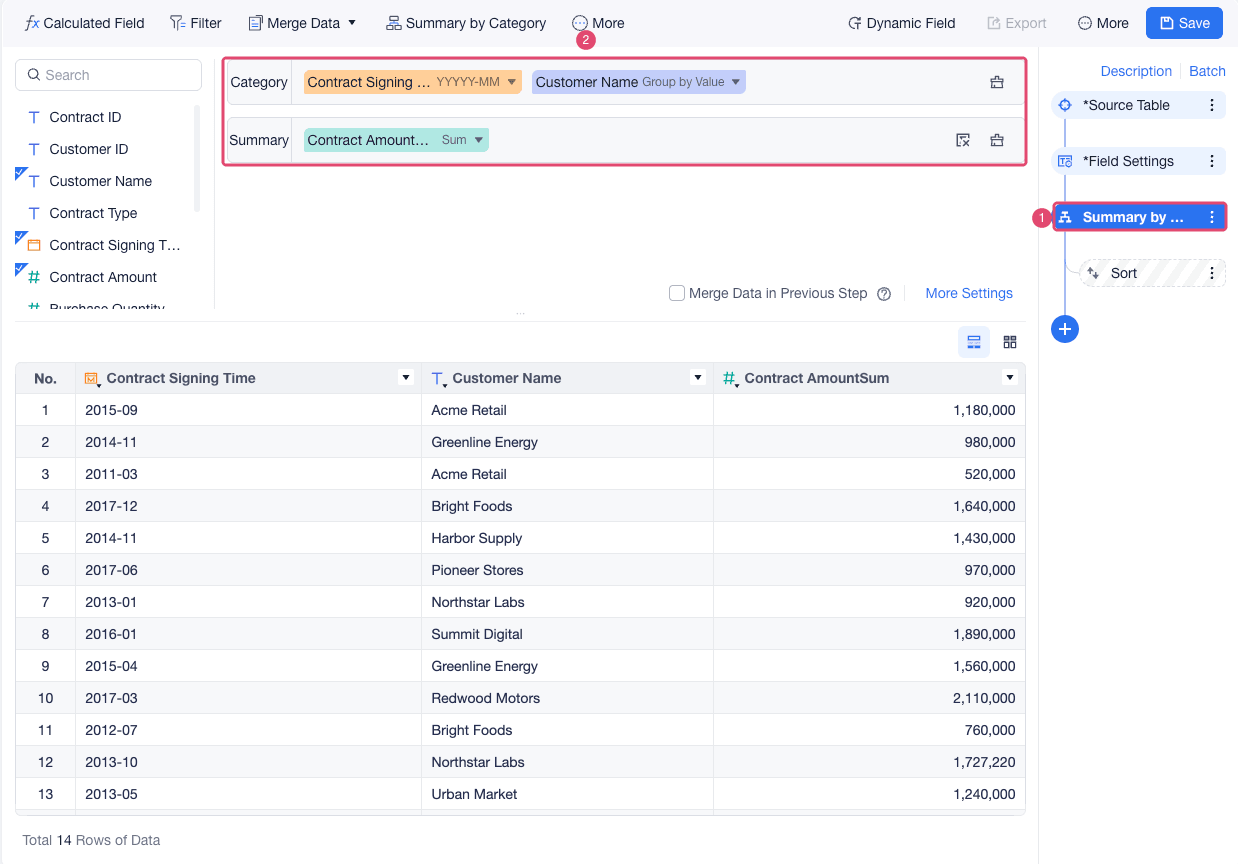
Add a Sort step.
Add the first sorting rule to sort Contract Signing Time in ascending order.
Click Add Sorting Rule to add another sorting rule and sort Contract Amount in descending order.
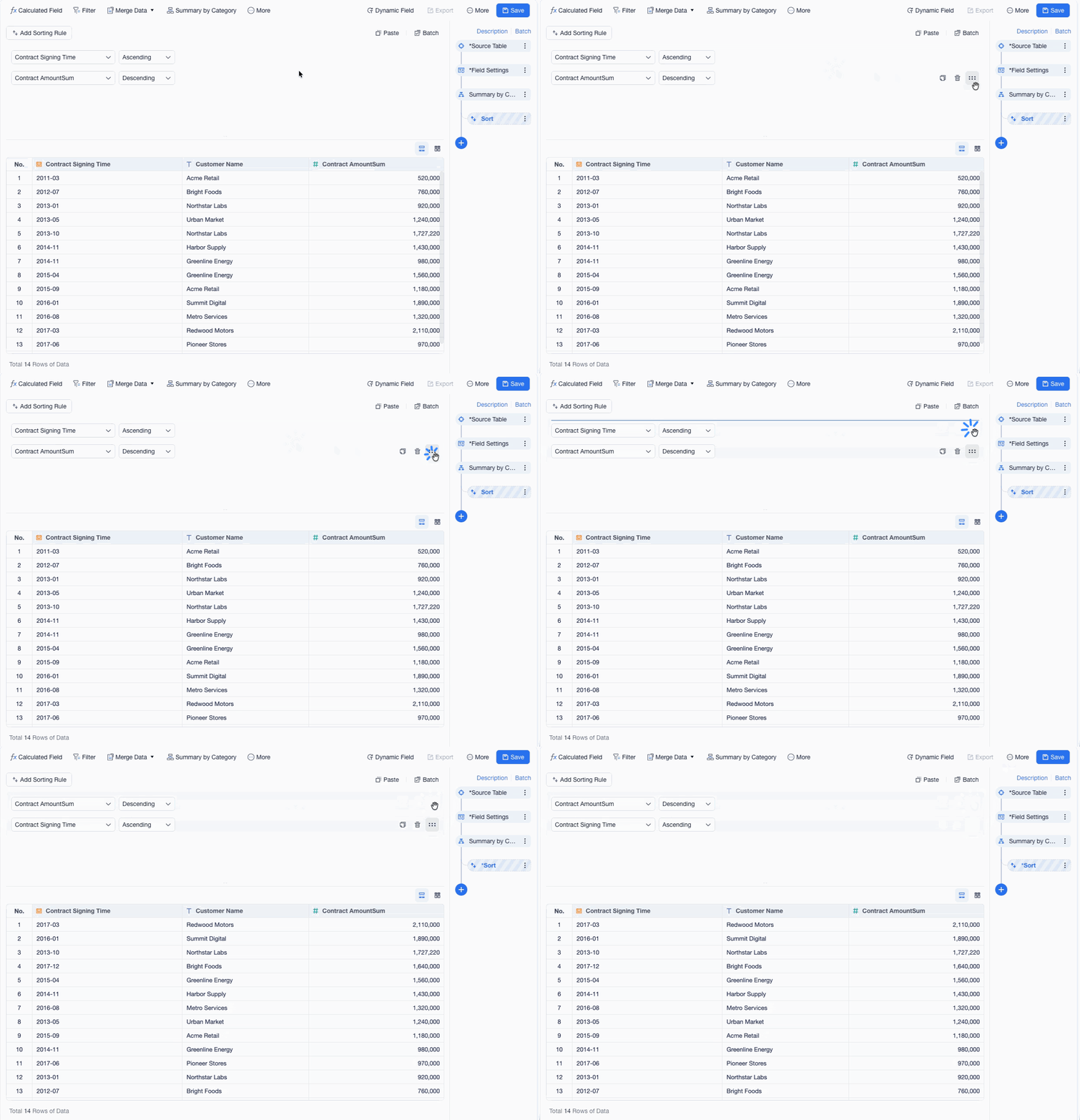
Reorder Sorting Rules
When multiple sorting rules are configured, you can drag the handle on the right side of a rule to reorder the rule.
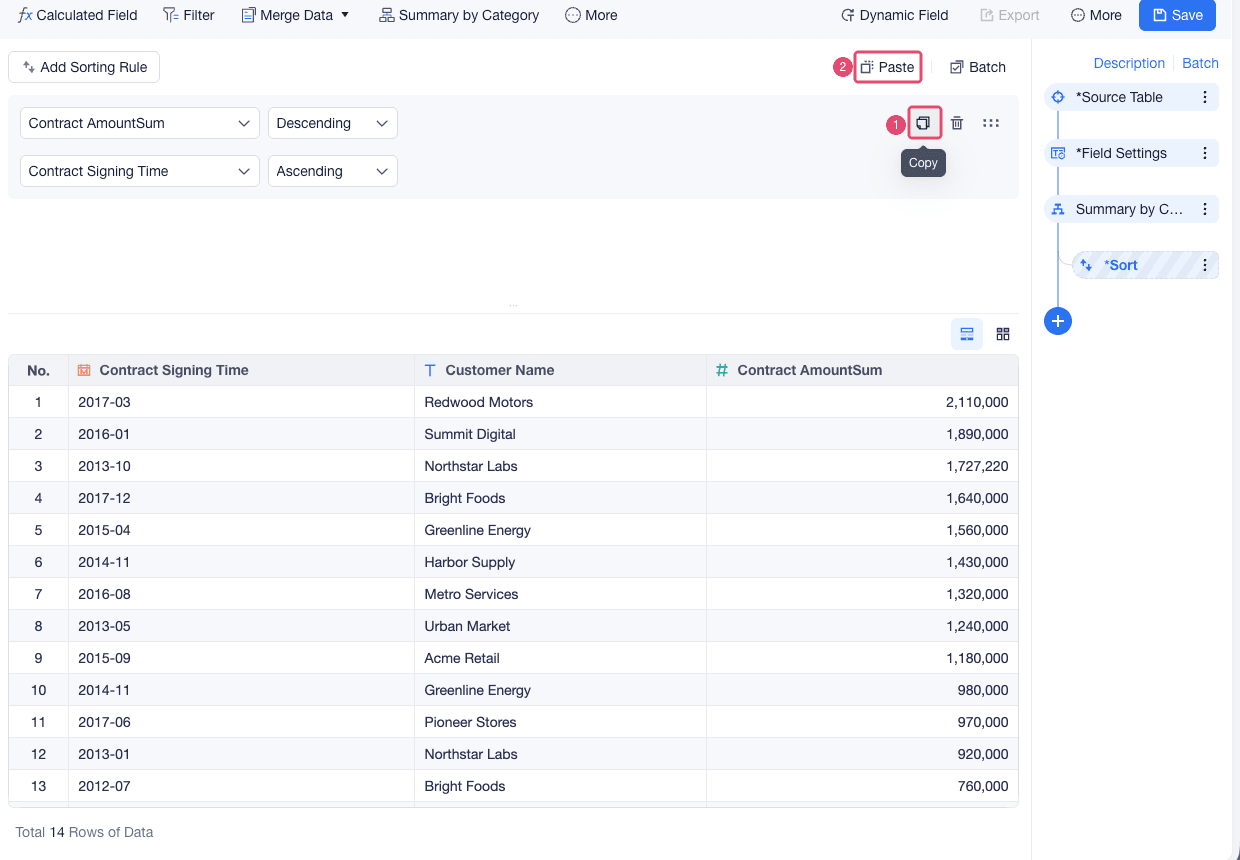
Copy or Delete Sorting Rules
You can copy sorting rules and paste them into another sort configuration, for example, a sort setting in another analysis table or chart.
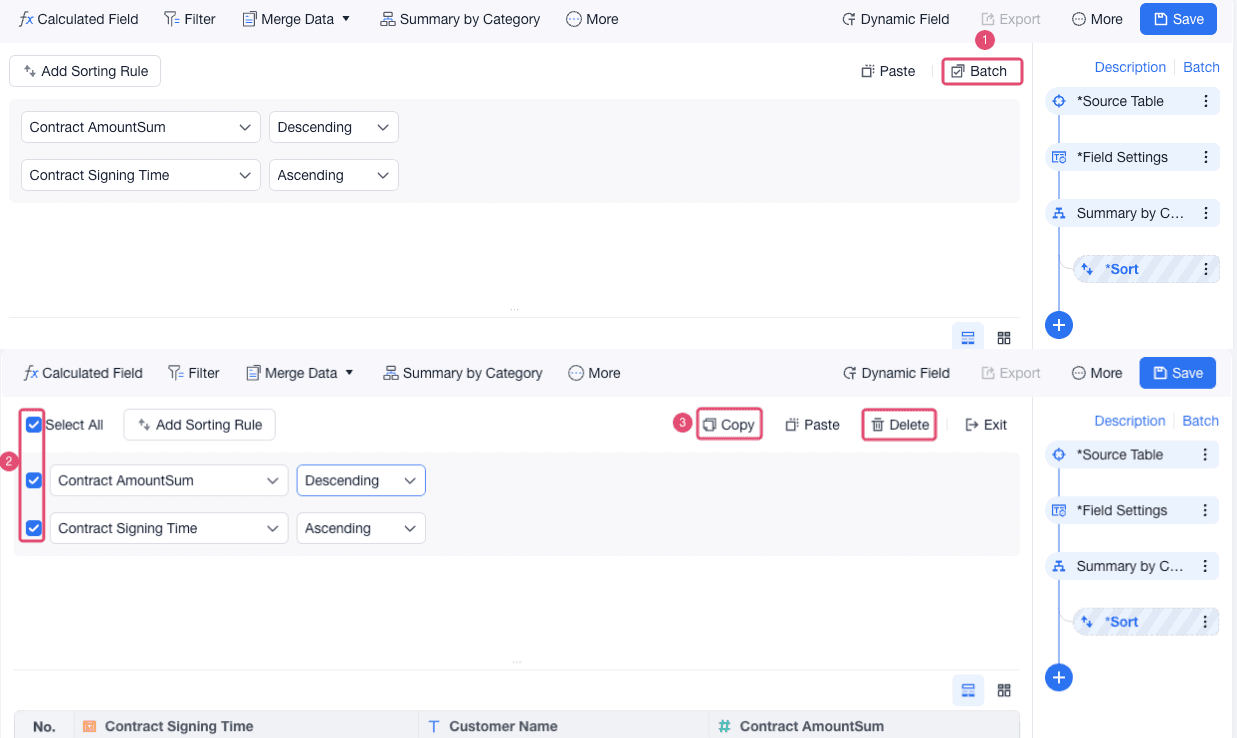
To manage multiple rules at once, select Batch, and then copy or delete the selected rules.
 Standalone Sort Step
Standalone Sort steps are unapplied by default and cannot be applied.
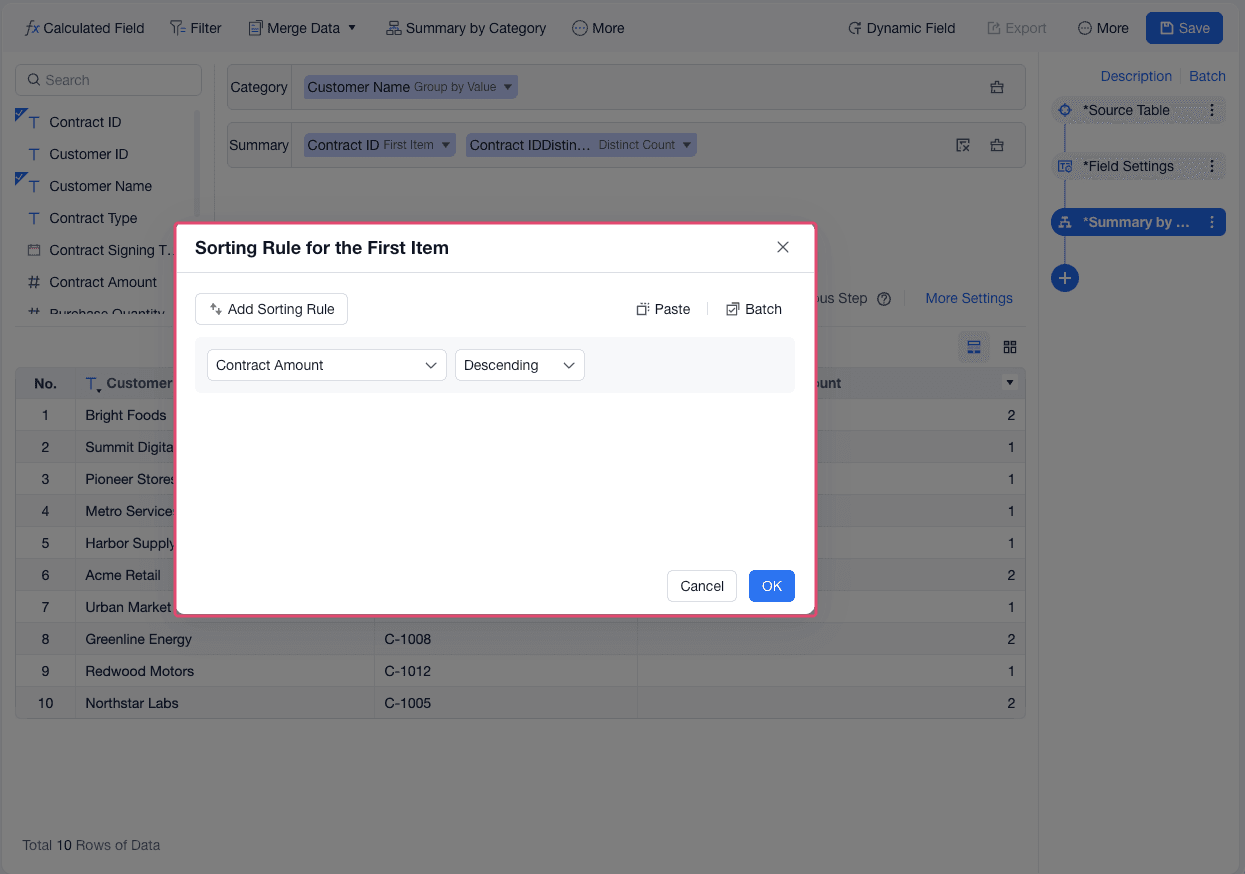
You can configure sorting inside the step that uses the order. For example, to find each customer's highest-value contract, group data by Customer Name and use First Item for Contract ID in Summary by Category, and set Contract Amount as the descending sort field.