


Connection is the starting point for bringing business data into FineBI Cloud. From this page, you can choose a data source type, connect or upload data, and make the data available for analysis.
After data is added, you can use it in Data Preparation or Analysis Space to clean data, create analysis tables, build charts, and publish dashboards or storyboards.
Before You Start
Make sure you have permission to add data sources. If you need to use an existing data source, you must also have access to that data source or the tables inside it.
Understand the Connection Page
Open Connection from the left sidebar to view the data connection page.
The page contains two main areas.
| Area | What It Shows |
|---|---|
| Data connection market | Data source types that FineBI Cloud can connect to |
| Data source tabs | Data sources that you have permission to view or use Data sources that have not been connected, or that you do not have permission to access, are not shown. |
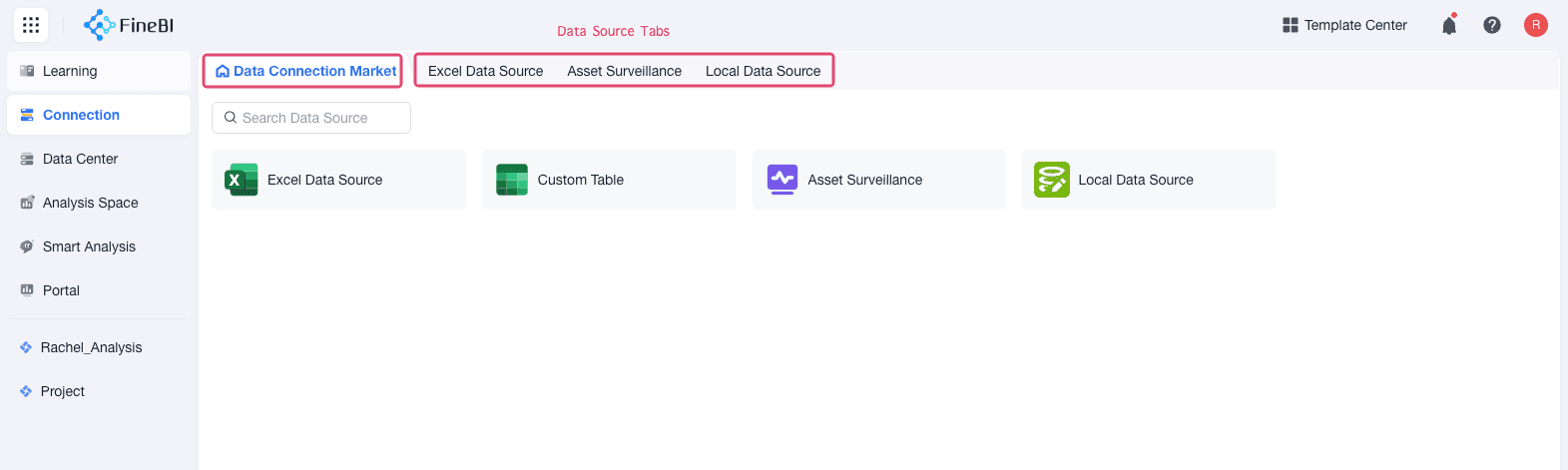
Know Data Source Types
Available data source types depend on your workspace and plan.
| Data Source Type | Use It To |
|---|---|
| Excel file | Upload spreadsheet data for quick analysis. |
| Custom table | Create or edit a small table directly in FineBI Cloud. |
| Database | Connect structured data from a supported database. |
| Local data source | Connect local files, folders, or databases through the supported local connection method. |
After You Add Data
After a data source is connected, its tables can be added to downstream workspaces for analysis.
| Destination | What You Can Do |
|---|---|
| Data Preparation | Clean, transform, join, summarize, and calculate data before analysis. |
| Analysis Space | Create analysis tables, charts, dashboards, and storyboards from the connected data. |
| Nines | Ask questions about selected data and generate AI-assisted analysis results. |