


Assign members as Editor or Viewer in Enterprise User Group. These two user types control what members can do after they enter FineBI Cloud.
Before You Start
Make sure the members you want to configure have been included in the FineBI Cloud's user scope in Product Center. Otherwise, they do not appear under Admins > FineBI > Enterprise User Group.
To open Management Backend > Admins > FineBI and configure Enterprise User Group, your account must meet one of the following requirements:
- You are the organization creator.
- You are a system admin.
- You are a FineBI admin with management permission on User Properties.
Editor and Viewer
- Editors can create and maintain analysis content.
- Viewers can consume shared or public content, but cannot edit it.
An organization member can be either an editor or a viewer, but not both.
| Product Area | Editor | Viewer |
|---|---|---|
| Connection | Can create, edit, and delete data sources. | Cannot manage data sources. |
| Data Center | Can view and manage data assets within their permission scope. | Can only view data assets within their permission scope. |
| Analysis Space | Can create spaces and projects, prepare data, create charts, dashboards, and storyboards, and save changes to content they can edit. | Can view projects and files they have permission to access. They may explore content temporarily, but cannot save the changes. |
| Portal | Can view content shared with them or assigned to them. | Can view content shared with them or assigned to them. |
| Management Backend | Can view User Properties, Schedule List, and Enterprise Logo. | Can view User Properties, Schedule List, and Enterprise Logo. |
Seat Limits
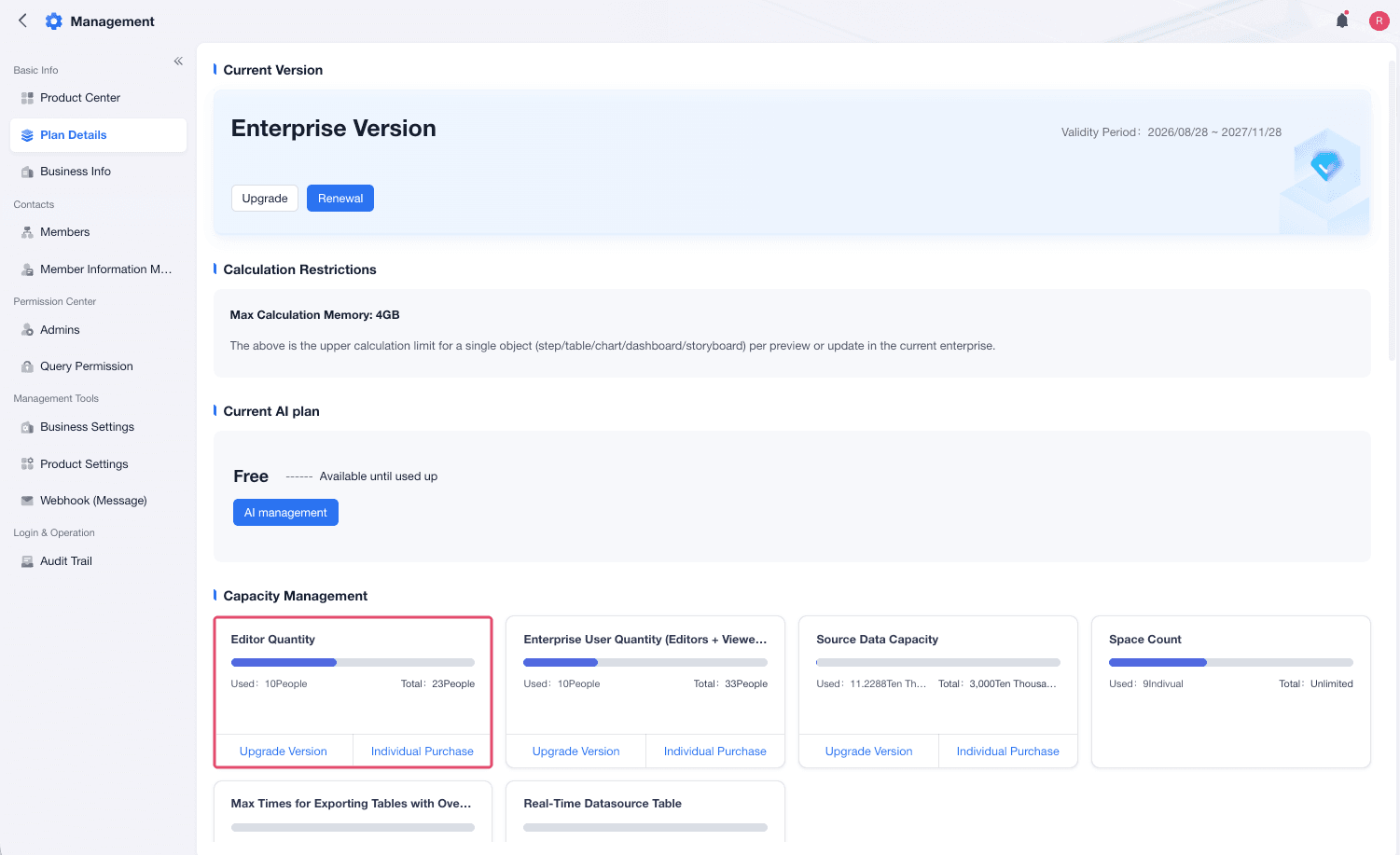
The number of editors cannot exceed the editor seat limit for your workspace. The limit depends on your plan and any additional editor seats that your organization has purchased. If a member is removed from the FineBI Cloud's user scope in Product Center, the member no longer occupies an Editor or Viewer seat.
You can check the current editor seat limit in Plan Details.
Configure Editors and Viewers
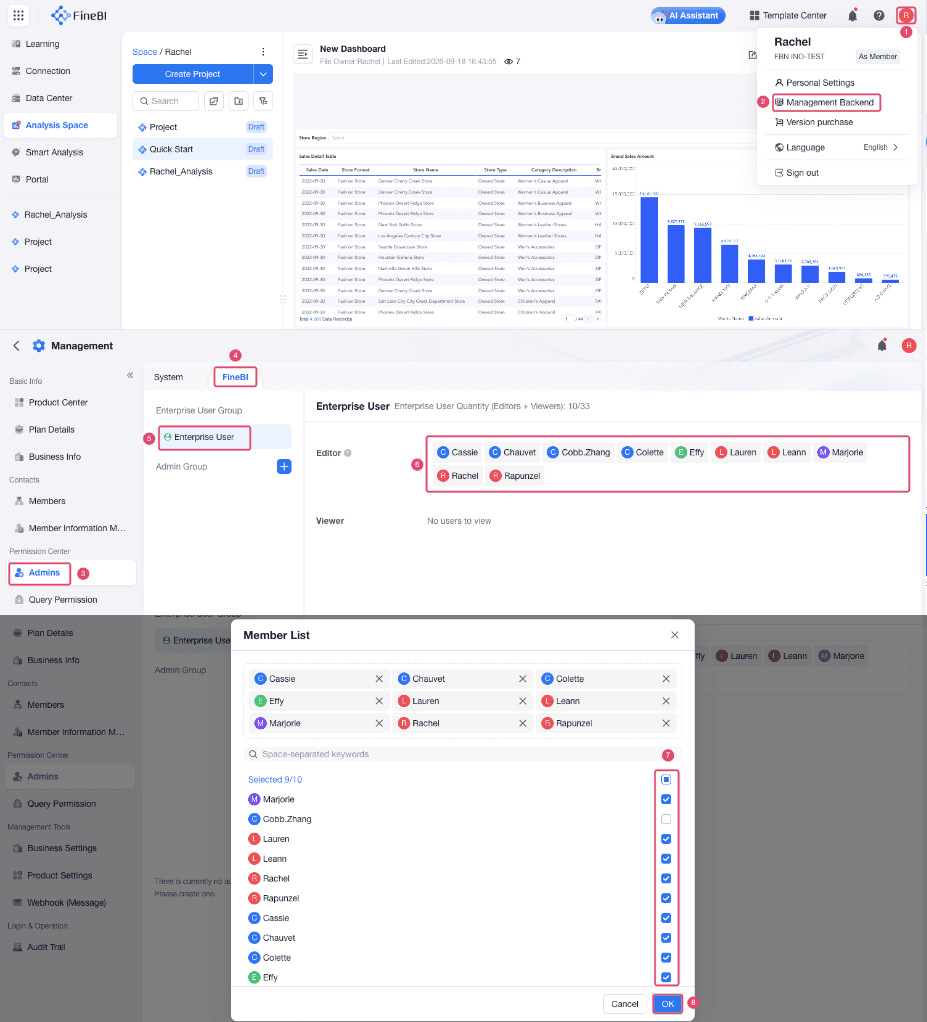
Choose Management Backend > Admins > FineBI.
The Enterprise User Group page shows the current Editor and Viewer lists.
Click the Editor area in Enterprise User Group. The member list dialog pops up.
Select the members who should be editors. Clear the members who should be viewers.
Members selected in this list become editors. Members in the FineBI Cloud's user scope who are not selected become viewers.
Click OK to save the configuration. The change takes effect immediately.
Common Issues
| Issue | Cause | What to Do |
|---|---|---|
| A member does not appear in the member list. | The member is not in the FineBI Cloud's user scope. | Add the member to the FineBI Cloud's user scope in Product Center first, and then configure the enterprise user group. |
| The editor seat limit is exceeded. | The number of selected users is greater than the editor seat limit for the version. | Reduce the number of editors or add more editor seats if your plan supports it. |
| A member cannot be changed from Editor to Viewer. | The member may be the organization owner, a system admin, or a FineBI admin. | Remove the related admin role first if the member should become a viewer. |
Result
After the user group is configured, editors can create and save analysis content according to their permissions, while viewers can only view the content they have access to.
Next Steps
- Add members to spaces where they need to work.
- Configure data source permissions for editors.
- Publish dashboards or storyboards to Data Portal for viewers.