


Use this document to join two tables by matching fields, so you can combine related data into one analysis table.
Before You Start
- You have uploaded or connected the tables that you want to join.
- You have created an analysis table.
- You know which field can be used to match records between the two tables.
When to Join Tables
You can join tables when related data is stored in different tables.
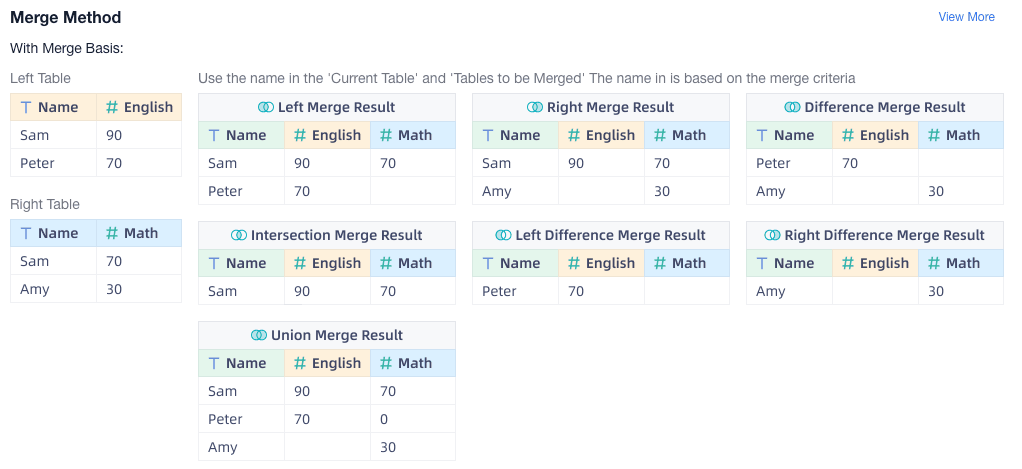
For example, assume that you have the following tables:
- Table A records student names and English scores.
- Table B records student names and math scores.
To view each student's name, math score, and English score in one table, use Name as the merge basis.
Join Types
FineBI Cloud supports the following join types:
- Left join
- Right join
- Full join
- Inner join
- Left only join
- Right only join
- Outer only join
- Cross join
When you join tables by one or more matching fields, FineBI Cloud combines rows based on the join condition.
When you join tables without a key, FineBI Cloud uses a Cartesian product. Each row in the right table is joined with each row in the left table.

Example
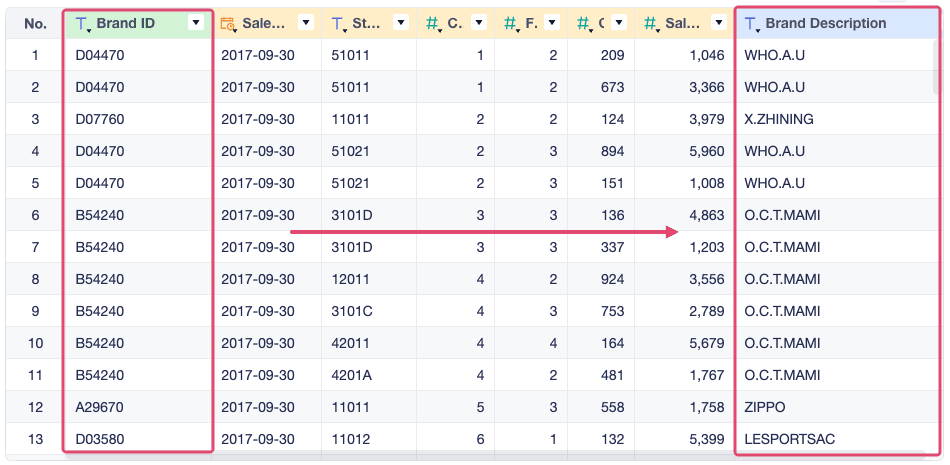
In this example, the Sales Details table contains only Brand ID. You need to match each brand ID with the corresponding brand description, so other members can understand the sales data more easily.
Create an Analysis Table
- Upload the data to FineBI Cloud.
- Add the data to a project.
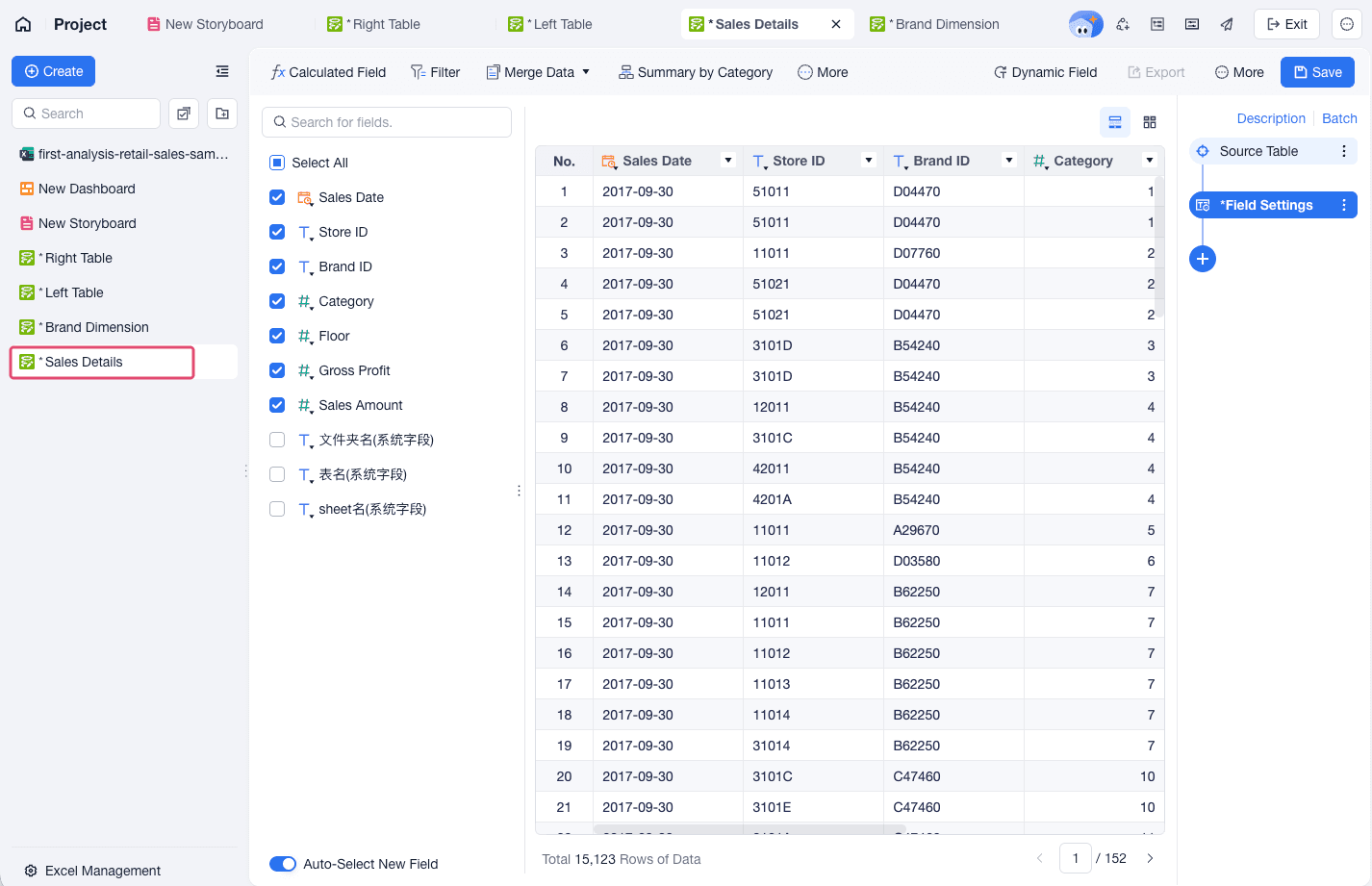
- Select Sales Details as the left table.
Join Tables
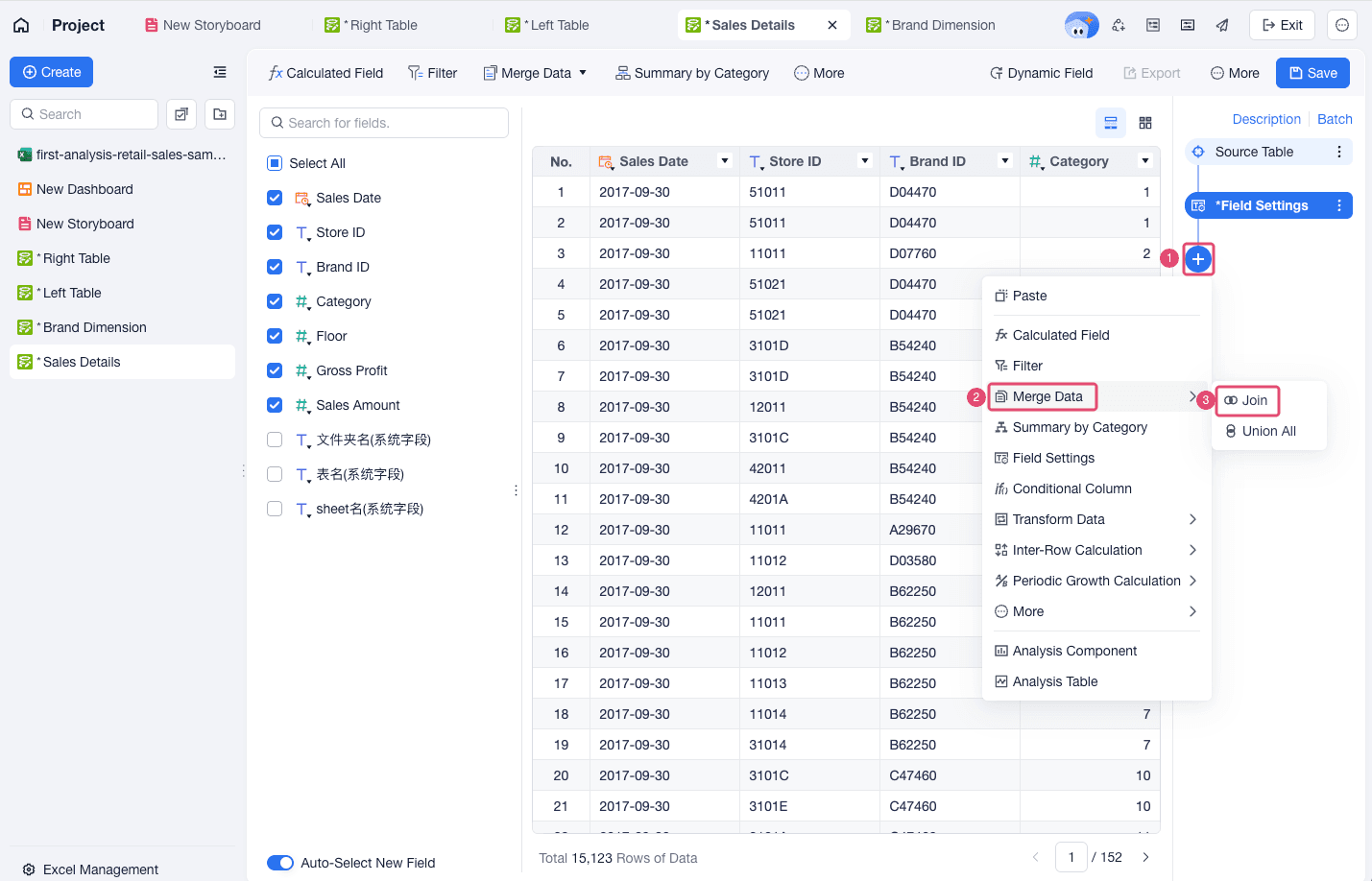
- Choose + > Merge Data > Join.
- Select Brand Dimension as the table to join.
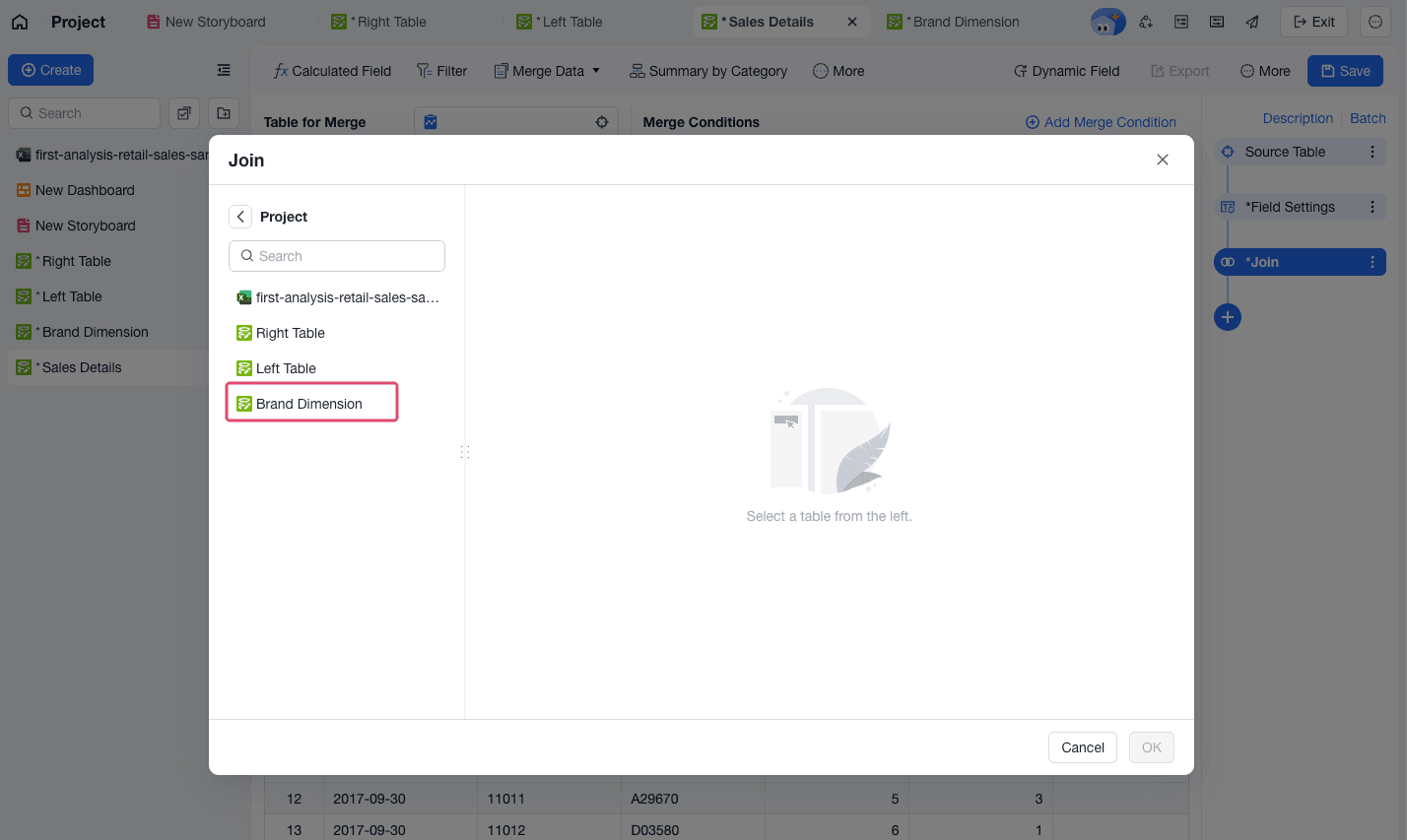 A check mark appears next to a left table that has already been used in the current analysis table. This helps you avoid selecting the same table again.
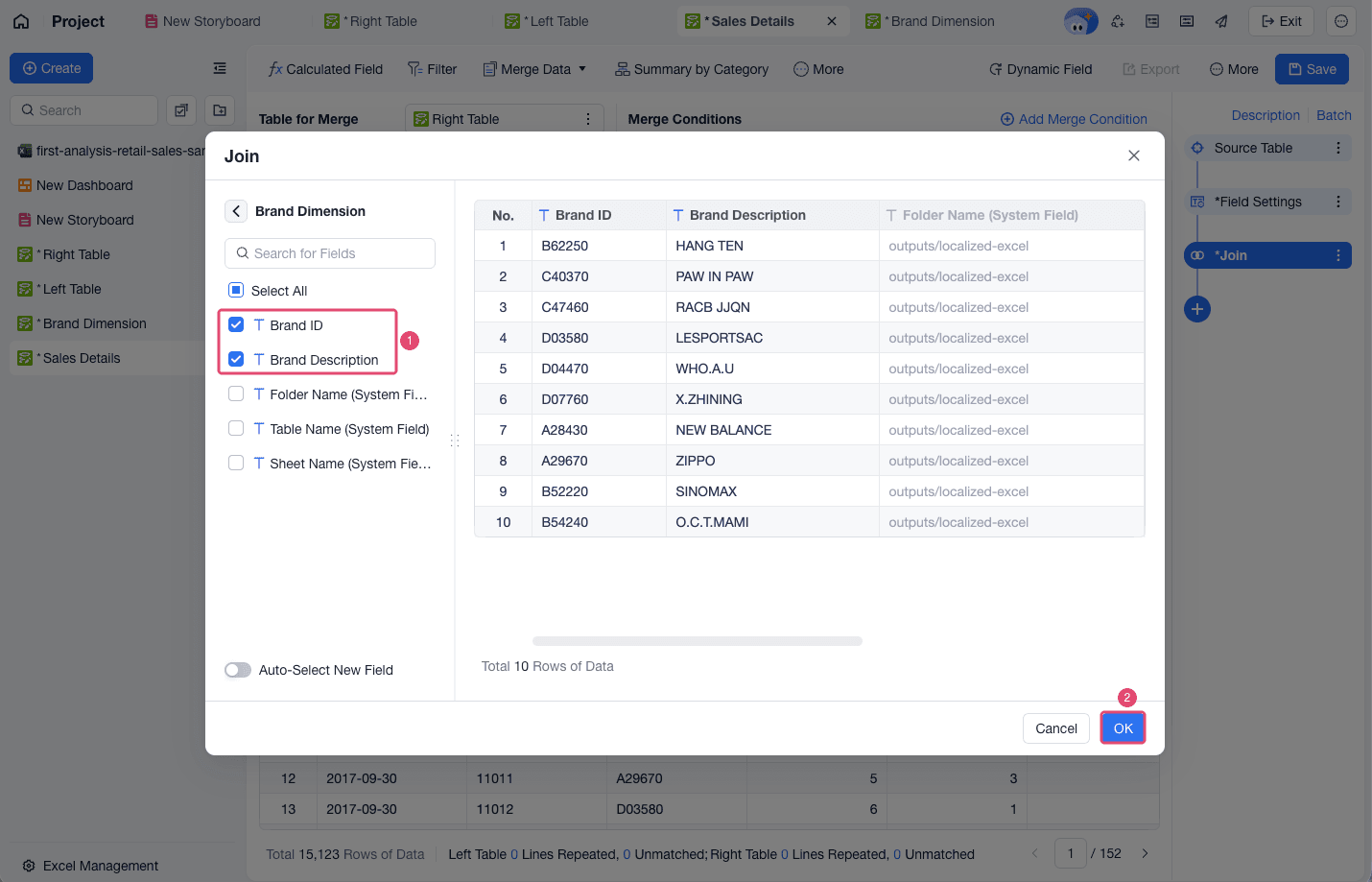
 - In Brand Dimension, select Brand ID and Brand Description. Click OK.
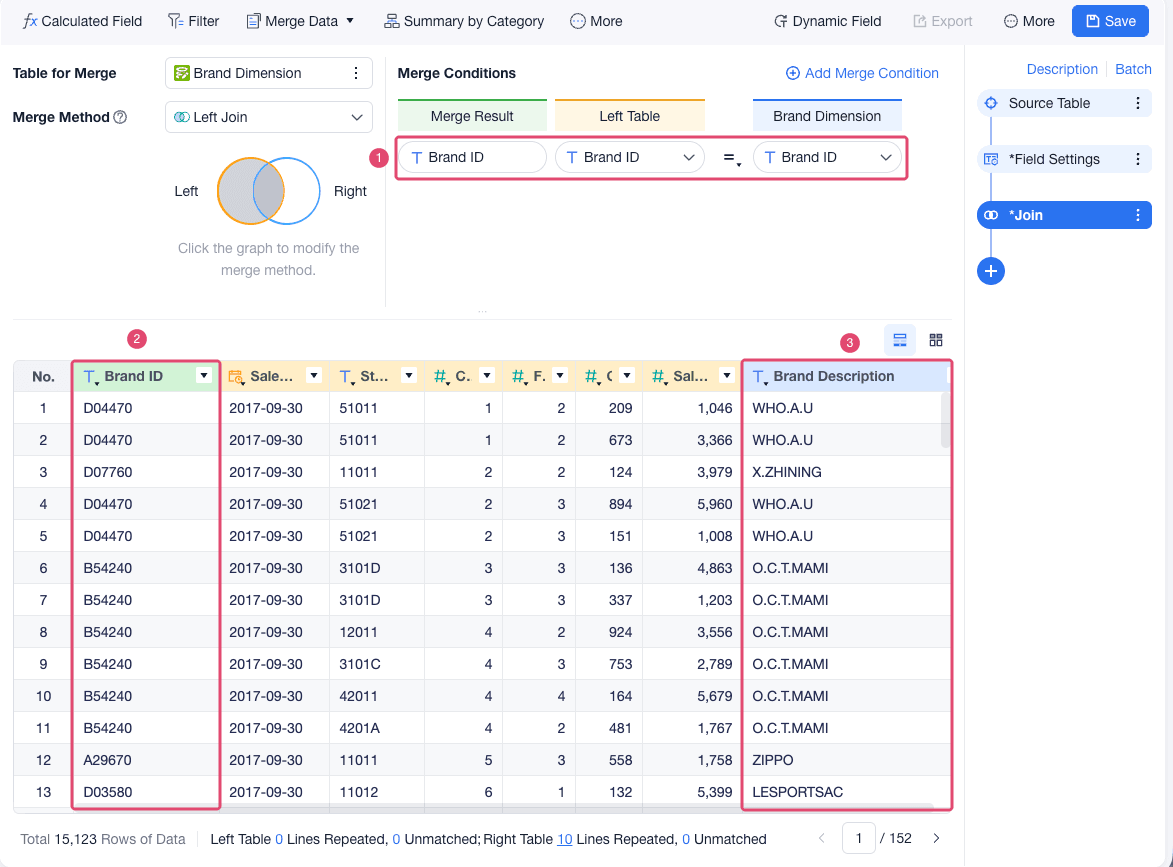
- If the two tables contain fields with the same name, FineBI Cloud automatically matches the fields. In this example, FineBI Cloud matches Brand Description based on Brand ID.
Change the Join Type
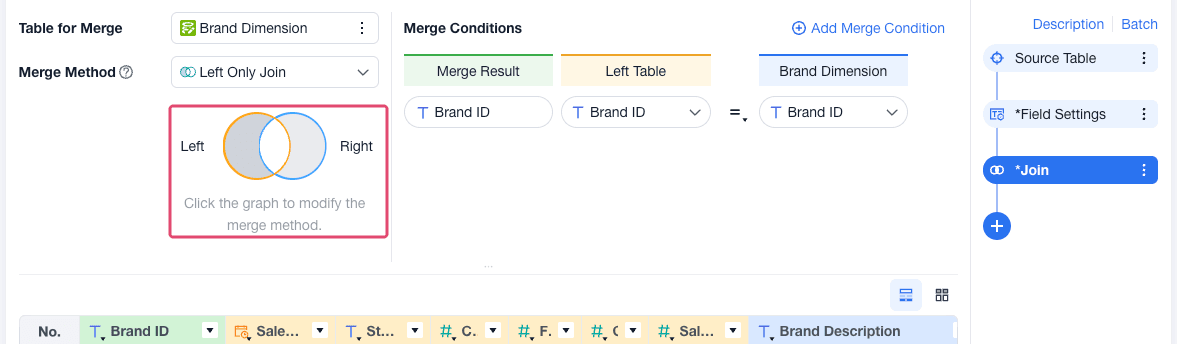
The example above uses a left join. You can switch to another join type, such as a right join, full join, or inner join, in the upper-left corner.
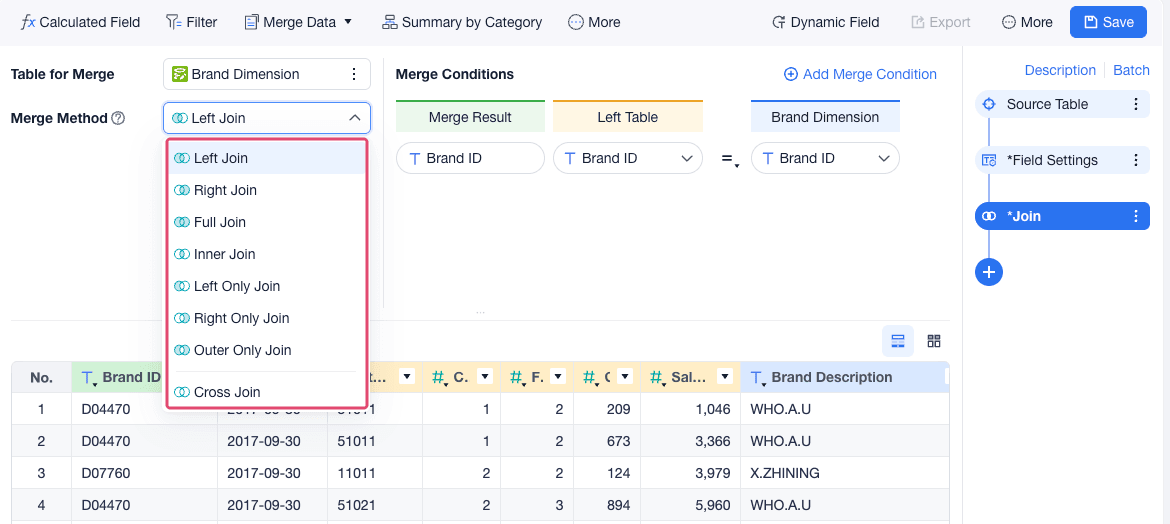
You can also click the join graph to change the join type.
Change the Merge Basis
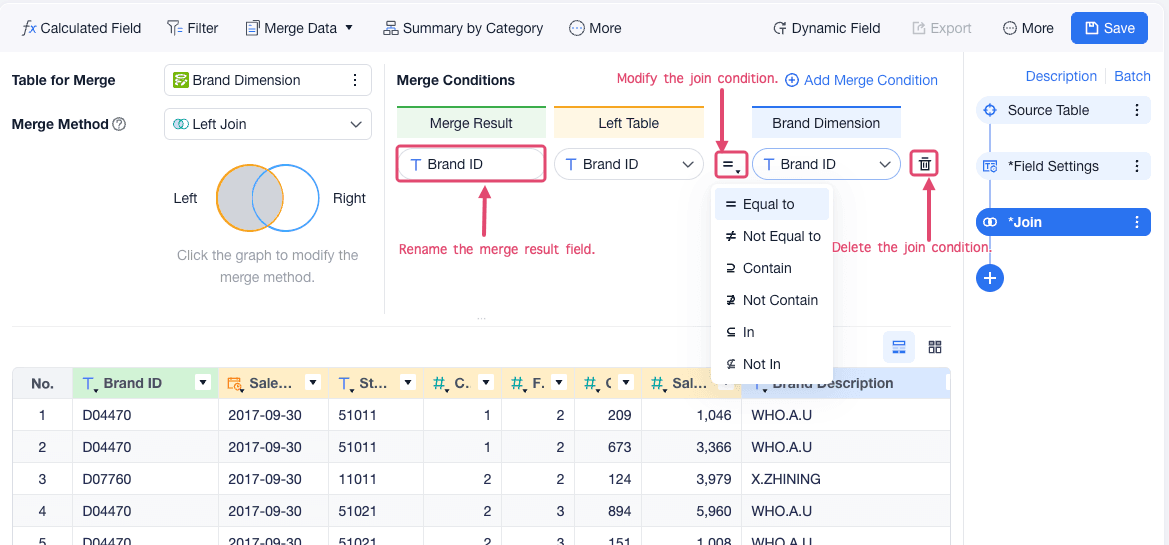
If the two tables contain fields with the same name, FineBI Cloud automatically matches them.
You can also manually rename the method result field and add/delete join conditions.
Change Right Table Data
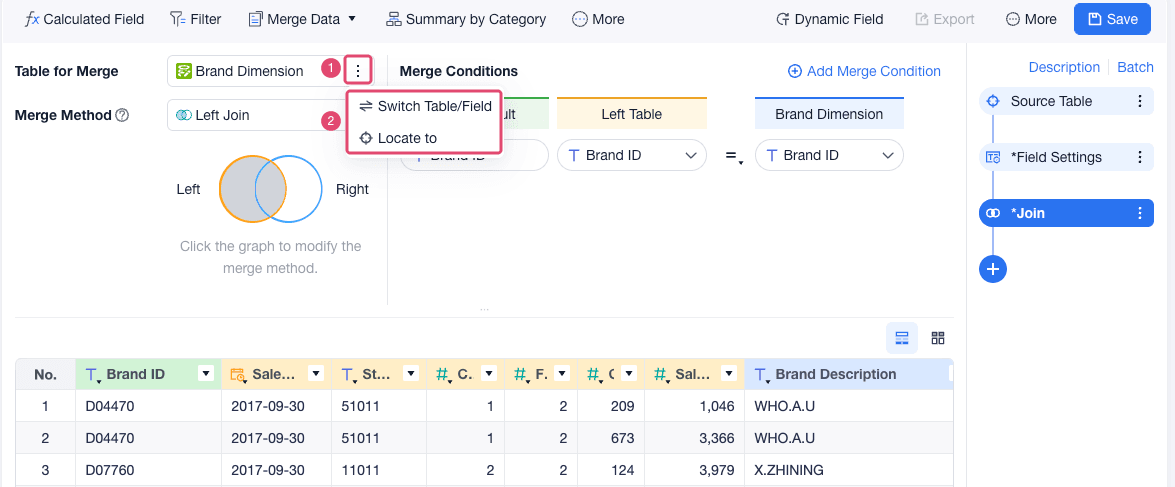
To change the fields from the right table that participate in the join, select Switch Table/Field from the menu of Table for Merge and select the fields again.
You can also go to the project where the right table is stored and edit the data there.
Recommended Tables
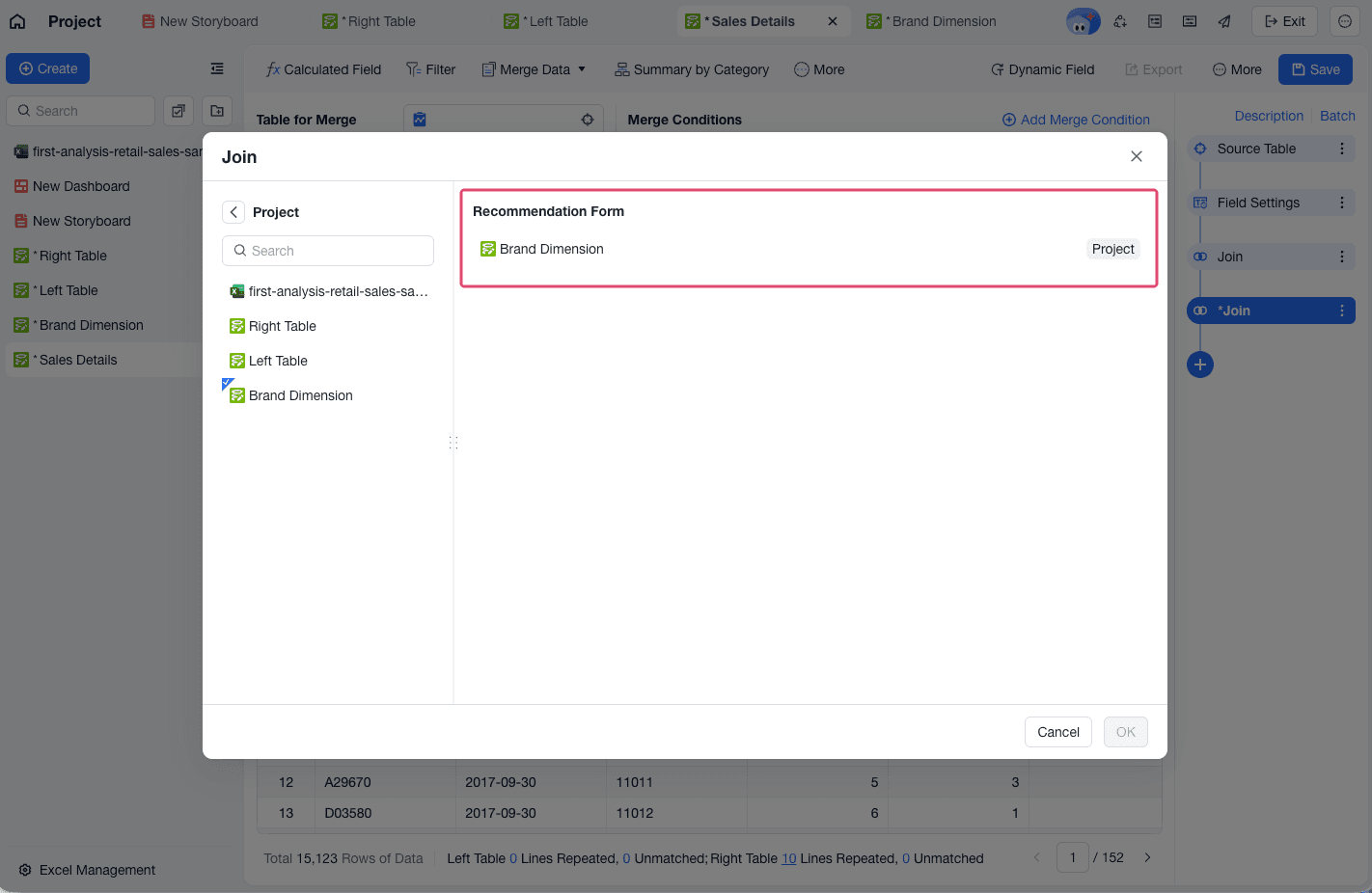
After you save a join step, FineBI Cloud records the configuration. The next time you select a table for a join, FineBI Cloud recommends tables from similar previous join steps.
For example, if you have saved the step to join Sales Details and Brand Dimension , FineBI Cloud may recommend the Brand Dimension table when you perform a join on Sales Details next time.
Result
After you complete the join, the analysis table contains fields from both tables. In this example, Sales Details is enriched with Brand Description from Brand Dimension.